Automations
The Automations page serves as the centralized hub for all automated compliance checks in your environment. It provides visibility into every automation available in your system, each designed to streamline compliance through ACE (Automated Collection of Evidence) and CCM (Continuous Control Monitoring).
This page enables users to view, manage, and assess the automations that support your selected compliance framework, making it easier to stay on top of control requirements and readiness.
You reach it from Automations under ConMon: Maintain in the left navigation.
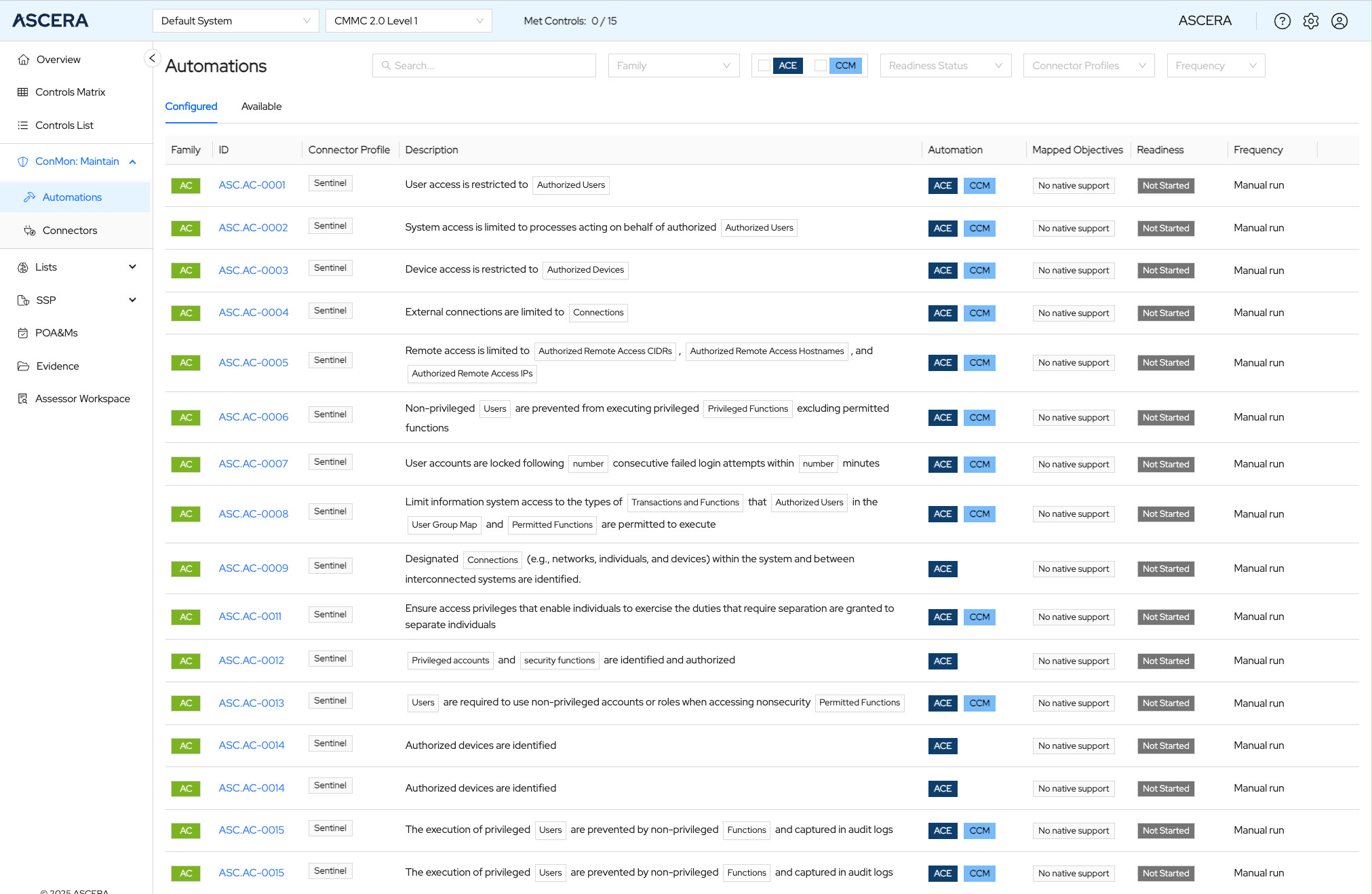
Tabs
The page has two tabs:
- Configured – The automations already set up for this system.
- Available – The automations that can still be added.
Use the Create Automation button to add a new automation.
Page Structure
Automations are displayed in a table, grouped by control family. Each automation entry includes detailed fields that provide operational and compliance insights.
-
Family: The control family the automation belongs to, for example AC for Access Control.
-
ID: A unique identifier for the automation, such as
ASC.BC-0001. Click it to open the Automation Details page. -
Connector: Indicates the data source or platform the automation is integrated with. Supported connectors include Microsoft Sentinel, KnowBe4, Tenable Nessus Cloud, and others.
-
Description: The automation’s title and purpose. This section also lists the Organization-Defined Parameters (ODPs) used in the workflow. ODPs are clickable and open a dialog where users can view and set values.
-
Automation: Visual tags that indicate whether the automation is classified as ACE, or both ACE and CCM.
-
Mapped Objectives: Shows which compliance objectives, from the active framework, are linked to this automation. You can change the active framework via the Framework Selector in the page header.
-
Readiness: Displays the current operational state of the automation. Possible states include:
- Not Started
- Tuning
- Deployed
- Not Supported
- Missing Data
-
Frequency: How the automation runs, for example Manual run when no schedule has been set.
Each row also carries a run control and a delete control.
Filters
The table can be narrowed with:
- A search box
- Family
- ACE and CCM checkboxes
- Readiness Status
- Connectors
- Frequency
Interactions
- ODP Dialog: Click on an ODP listed in the Description to view or modify its value directly from the dialog.
- Automation Details: Click an automation's ID to open the Automation Details page for deeper insight into the automation’s configuration, results, and history.
This page plays a critical role in ensuring your organization's automations are actively monitored, evidence is collected efficiently, and compliance statuses are updated in real time, helping you maintain continuous readiness.