Automation Details Page
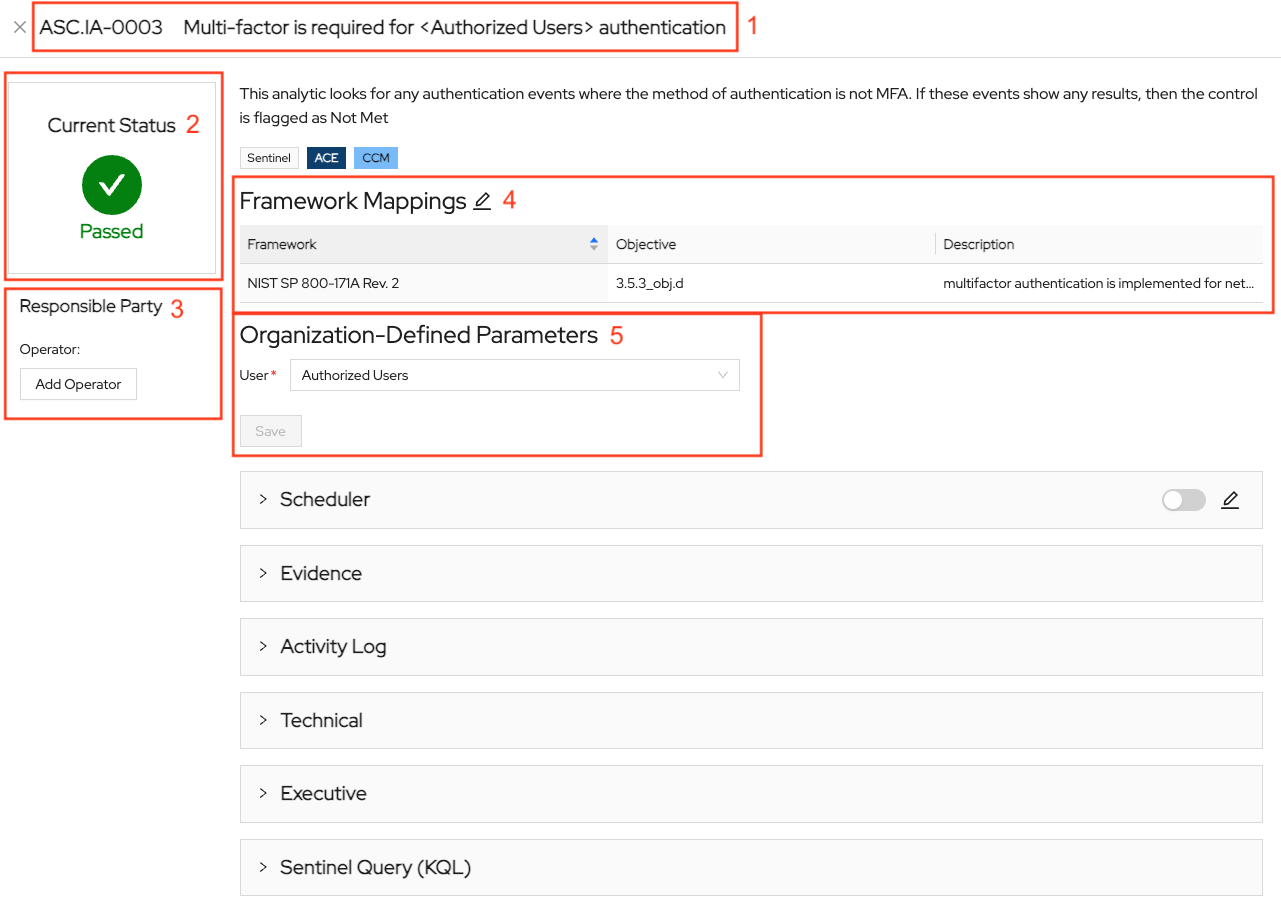
1. Control Title
Each Automation Details page features the title of the control the automation supports.
2. Current Status
The most crucial element is the control Current Status. The Current Status will reflect the current state of the ACE requirement based on the business engine compliance rules when configured for ACE.
3. Responsible Party
This feature helps the user establish an Operator for a control. The Control Operator is the entity responsible for the day-to-day operation of the security requirement.
4. Framework Mappings
This section illustrates which objectives the control satisfies across various frameworks. The left column identifies the framework and can be sorted by ascending or descending. The middle column identifies the objective. The right column contains a description of the objective.
To add to this section, click the pencil icon next to “Framework Mappings.” A pop-up window will appear with two columns. In the left column, search or select an objective. In the right column, search or select a framework.
5. ODPs
This section allows users to edit the Organization-Defined Parameters associated with the control. You can select Lookup Lists for the control’s applicable ODPs.
Automation Details Page Dropdowns
Scheduler
The Scheduler tool allows operators to create scheduled times for running ASCERA automation. Clicking on the pencil icon launches the modal designed to facilitate the creation of Schedulers. Users can select the frequency and time of each schedule while toggling them on and off as needed.
Evidence
This subsection facilitates the monitoring of evidence files uploaded for an individual automation, along with identifying items that necessitate further attention. This dropdown provides an overview of each piece of evidence, along with options for identifying, viewing, and sorting evidence with fields for:
- Document Name
- Associations
- Author
- Created At (Time)
- Last Modified
- Last Modified By
Activity Log
The Activity Log documents every action associated with an individual automation. Activity is automatically logged with the following information:
- Description
- Event Type
- Context
- Author
- Source
- Created At (Time)
Technical
This is a technical summary for compliance and security professionals detailing the automation ASCERA performs to satisfy the requirements for each automation.
Executive
This is a layman’s summary for executive professionals detailing the automation ASCERA performs to satisfy the requirements for each automation.
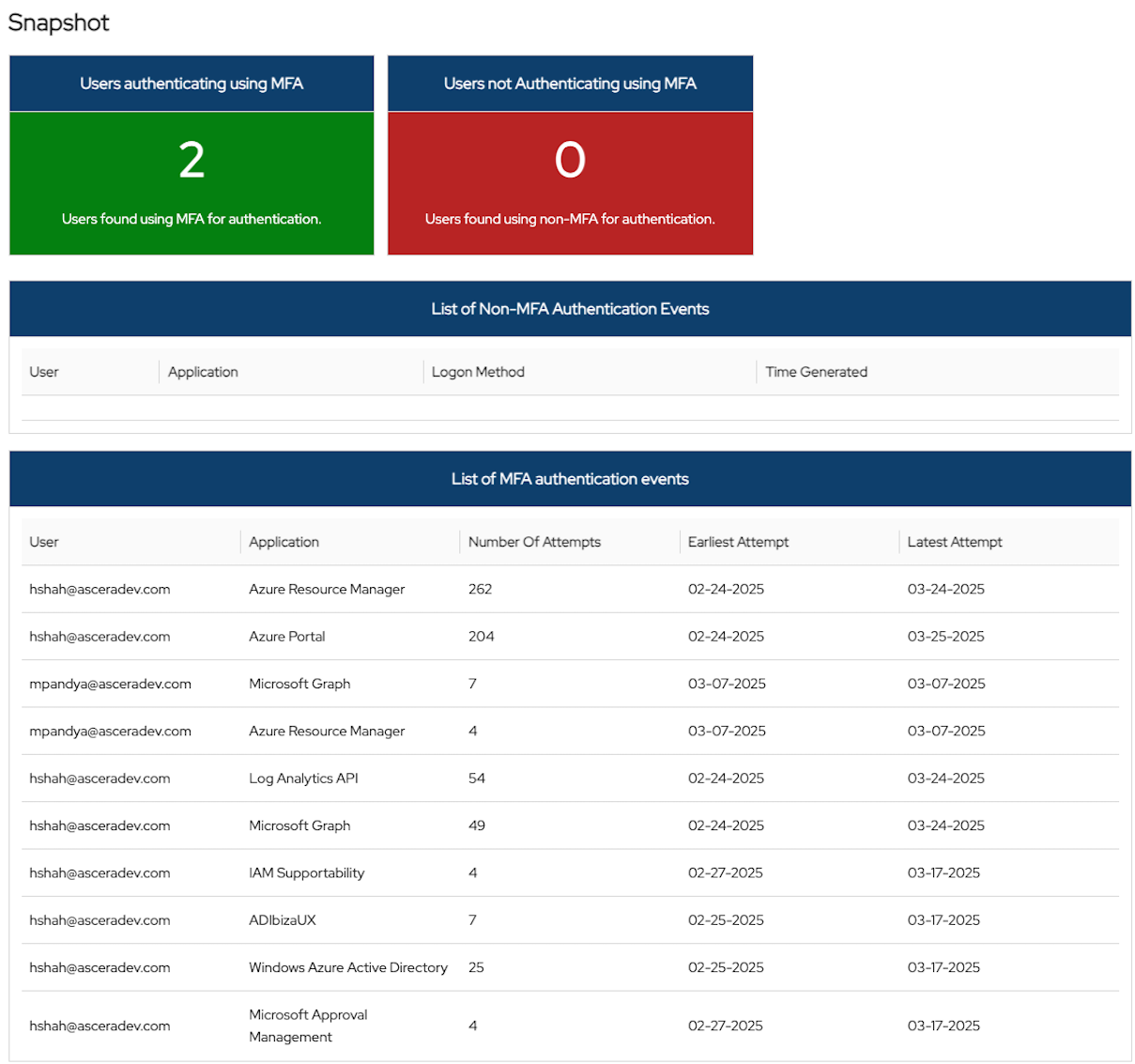
Snapshots
The Snapshot section provides automatically collected evidence (ACE) presented in a mini-dashboard with score cards and detailed evidence providing direct insight into specifics about any mismatch between the desired and actual compliance state, thereby making it clear where the compliance gap is, and what portion of your system is compliant.
If an automation has enabled automation for monitoring Organizationally Defined Parameters (ODPs), ASCERA’s automation compares the data ingested from your SIEM to your chosen framework’s compliance requirements in near-real time.
After running the automation, the Snapshot acts as a quick view of your results in satisfying each requirement or assessment objective.