Configure SSO with Microsoft Entra ID
Set up OpenID Connect (OIDC) single sign-on so your team can log in to ASCERA using their Microsoft accounts.
This guide walks you through creating an App Registration in Microsoft Entra ID and obtaining the Client ID, Client Secret, and Directory ID required by ASCERA.
Prerequisites
- A Microsoft Entra ID (Azure AD) tenant
- An account with at least the Application Developer or Cloud Application Administrator role
- Admin access to ASCERA's Organization Settings
Step 1: Create an App Registration
-
Sign in to the Microsoft Entra admin center.
-
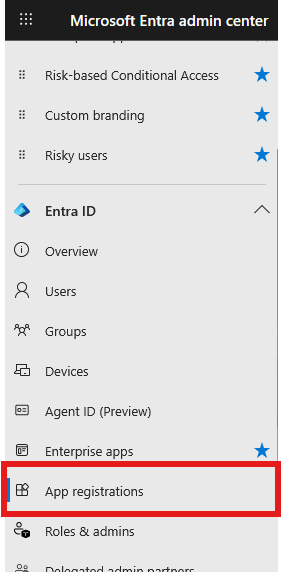
In the left sidebar, navigate to Entra ID > App registrations.
-
Click New registration.
-
Fill in the following:
| Field | Value |
|---|---|
| Name | A recognizable name, e.g. ASCERA - SSO |
| Supported account types | Select Accounts in this organizational directory only (single tenant) |
| Redirect URI | Select Web and enter the redirect URI for your platform (see below) |
- Click Register.
Use the redirect URI that matches the platform you access:
| Platform | Redirect URI |
|---|---|
| ASCERA | https://app.ascera.com/login/auth/callback/entra-id |
| CUIComply | https://app.cuicomply.com/login/auth/callback/entra-id |
Step 2: Copy the Client ID and Directory ID
After registration, you will land on the app's Overview page. Copy the following two values:
| Entra ID Field | ASCERA Field |
|---|---|
| Application (client) ID | Client ID |
| Directory (tenant) ID | Directory ID |
Important: Application (client) ID and Object ID are different values. Use the one labeled "Application (client) ID."
Step 3: Create a Client Secret
- From your App Registration page, click Certificates & secrets in the left menu.
- Select the Client secrets tab.
- Click + New client secret.
- Enter a description (e.g.
ASCERA SSO Secret) and select an expiration period (see note below). - Click Add.
- Immediately copy the Value column. This is your Client Secret.
Critical: The secret value is only shown once. If you navigate away without copying it, you will need to create a new secret. Make sure you copy the Value, not the Secret ID.
Note: Microsoft limits client secrets to a maximum of 24 months. Set a calendar reminder to rotate the secret before it expires to avoid login disruptions.
Step 4: Verify API Permissions (Optional)
By default, new app registrations include the User.Read permission, which is sufficient for basic SSO. To verify:
- Go to API permissions in the left menu of your App Registration.
- Confirm Microsoft Graph > User.Read is listed.
- If your organization requires admin consent, click Grant admin consent for [Your Organization] so users are not prompted individually.
Step 5: Enter Credentials in ASCERA
- In ASCERA, go to Settings > Single Sign-On (SSO).
- Click Add SSO.
- Select Entra ID as the Provider.
- Paste the values you copied:
| ASCERA Field | Where to Find It |
|---|---|
| Client ID | Application (client) ID from the Overview page |
| Client Secret | Secret Value from Certificates & secrets |
| Directory ID | Directory (tenant) ID from the Overview page |
- Click Create.
Your SSO configuration is now active. Users in your Entra ID tenant can log in to ASCERA using their Microsoft credentials.
User Access and Provisioning
Enabling SSO does not automatically grant access to everyone in your Entra ID tenant. ASCERA controls access independently. A user must first be added to your ASCERA tenant by their email address before they can log in.
Users who exist in Entra ID but have not been added to ASCERA will not be able to log in, even if SSO is configured. Think of SSO as the authentication method, not the access control mechanism. ASCERA still determines who is authorized.
Troubleshooting
| Error / Symptom | Resolution |
|---|---|
| AADSTS50011 - redirect URI mismatch | The redirect URI in your App Registration does not match what ASCERA sends. Go to Authentication in your App Registration and add or correct the redirect URI. |
| AADSTS7000215 - invalid client secret | You may have copied the Secret ID instead of the Value. Create a new client secret and copy the Value column. |
| AADSTS700016 - application not found | The Client ID or Directory ID is incorrect. Verify you copied the Application (client) ID and Directory (tenant) ID from the Overview page. |
| Users prompted for consent on every login | An admin has not granted consent. Go to API permissions and click Grant admin consent. |
| SSO stopped working suddenly | The client secret may have expired. Create a new secret in Entra ID and update it in ASCERA. |