Google Cloud Identity Connector Configuration Guide for ASCERA
The Google Cloud Identity connector allows ASCERA to retrieve user and identity data from your Google Workspace environment via the Admin SDK API. Setup involves creating a service account in the Google Cloud Console, enabling domain-wide delegation, and entering the resulting credentials in ASCERA.
Prerequisites
- Super Administrator role in your Google Workspace domain to configure domain-wide delegation
- A Google Workspace account with at least User Management Admin role to use as the Administrator Email Address in ASCERA
- Access to the Google Cloud Console with an existing or new GCP project
The following values are required when configuring the connector in ASCERA. All are found in the service account JSON key file generated during setup:
- Administrator Email Address
- Project ID
- Account Type
- Private Key ID
- Private Key
- Client Email
- Client ID
- OAuth Scopes
Google Cloud Setup
Before you begin: As you work through the steps below, keep the downloaded service account JSON key file in a secure location. You will need the values from that file to complete the connector configuration in ASCERA.
Enable the Admin SDK API
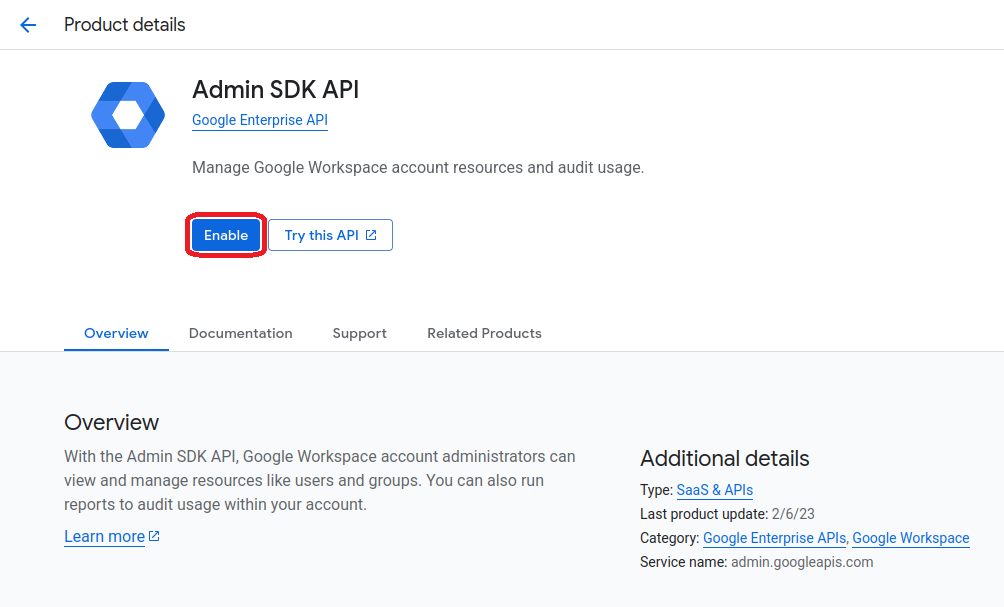
In the Google Cloud Console, ensure you are in the correct project, then navigate to APIs & Services > Library. Search for Admin SDK API and click Enable.
Create a Service Account
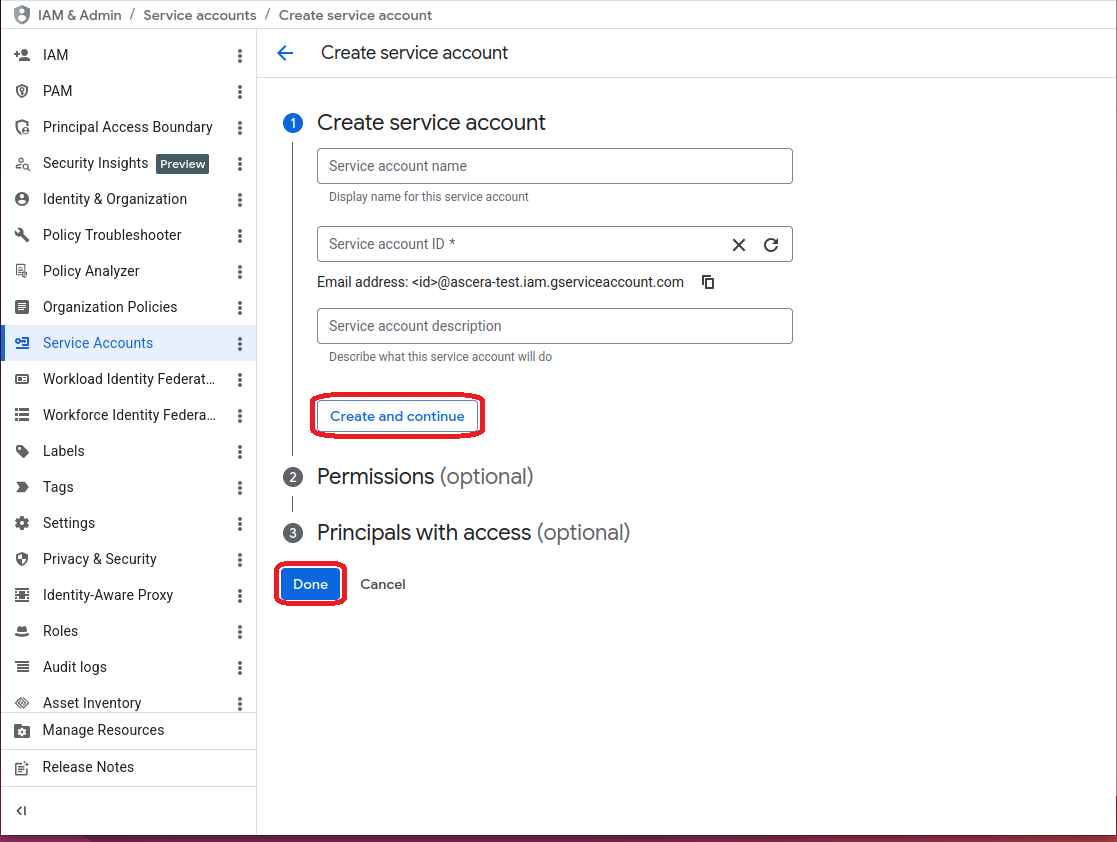
Navigate to IAM & Admin > Service Accounts and click + CREATE SERVICE ACCOUNT.
- Service account name:
ascera-connector(or any descriptive name) - Service account ID: Auto-populated
Click Create and continue, skip the optional role and user access steps, then click Done.
Enable Domain-Wide Delegation
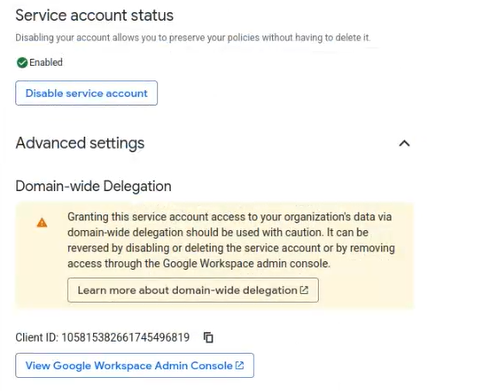
Click on the newly created service account's email address in the list to open its details. Under the Details tab, expand the Advanced settings section and check Enable Google Workspace Domain-wide Delegation. Click Save.
Copy the Client ID shown in the delegation section. You will need it in the next step.
Authorize the Service Account in Google Admin
In a separate browser tab, open the Google Admin Console and navigate to Security > Access and data control > API controls > Manage Domain Wide Delegation.
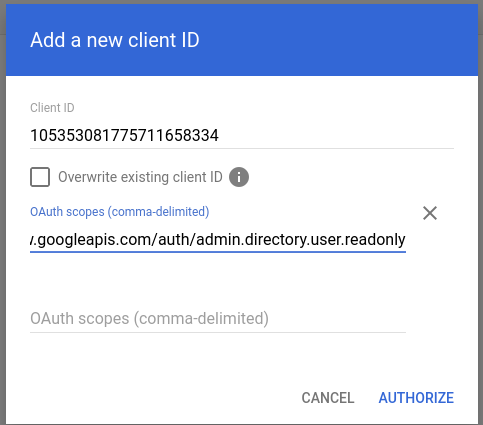
Click Add new and enter the following:
- Client ID:
<Client ID copied from the service account> - OAuth Scopes:
https://www.googleapis.com/auth/admin.directory.user.readonly
Click Authorize.
Additional OAuth scopes may be required depending on which ASCERA features are enabled for this connector.
Generate a JSON Key
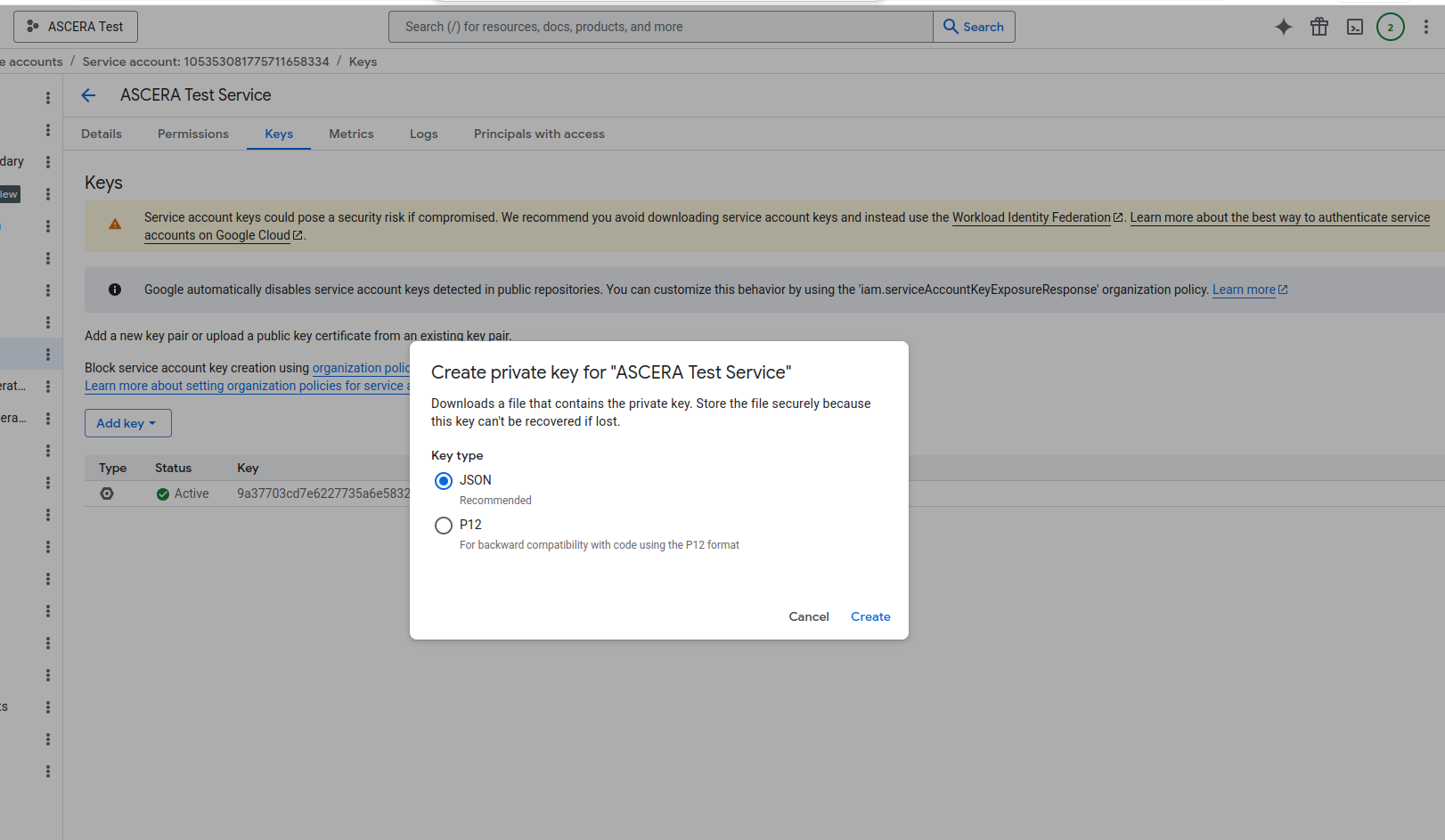
Return to the Google Cloud Console and go back to IAM & Admin > Service Accounts. Click on the service account, open the Keys tab, and click Add Key > Create new key.
Select JSON as the key type and click Create. The JSON file is automatically downloaded.
The private key is only available at the time of download. Store the file securely. If lost, a new key must be generated.
The
private_keyvalue in the JSON file will contain literal\ncharacter sequences representing line breaks. This is expected and does not need to be modified before use in ASCERA.
Configure the Connector in ASCERA
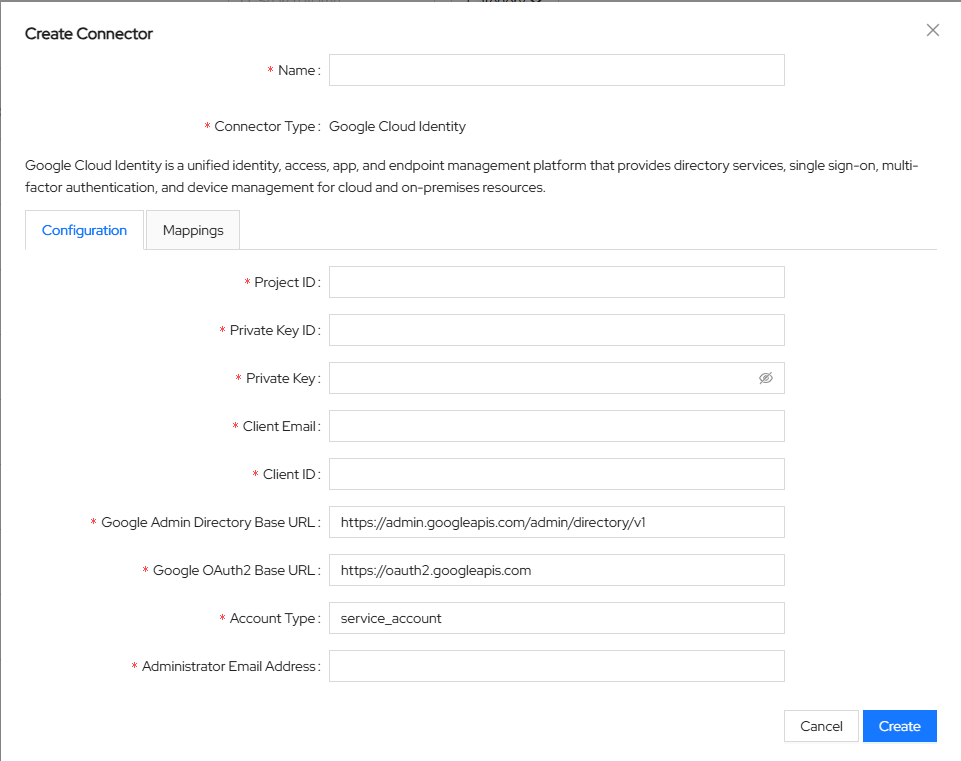
Unfold ConMon: Maintain and choose Connectors, then click Create in the upper right corner. Select Google Cloud Identity from the list of connector types.
Enter the values from the downloaded JSON key file into the connector configuration:
- Name:
Google Cloud Identity ASCERA Connector(or any name you prefer) - Administrator Email Address:
<Email of a Google Workspace account with at least User Management Admin role> - Project ID:
project_idfrom the JSON file - Account Type:
typefrom the JSON file (typicallyservice_account) - Private Key ID:
private_key_idfrom the JSON file - Private Key:
private_keyfrom the JSON file. Paste the value exactly as it appears, including the-----BEGIN PRIVATE KEY-----and-----END PRIVATE KEY-----headers and any\ncharacter sequences - Client Email:
client_emailfrom the JSON file - Client ID:
client_idfrom the JSON file - OAuth Scopes:
https://www.googleapis.com/auth/admin.directory.user.readonly
Click Create to save the configuration.
Test the Connection
After saving, ASCERA automatically creates a Lookup List named Users - <connector name>. To test the synchronization, unfold Lists on the left and choose Lookup Lists. Open your Lookup List, click Synchronize, and confirm that the sync starts and completes successfully.
Troubleshooting
- Authentication failed / invalid grant: Verify the Administrator Email Address belongs to an account with at least User Management Admin privileges and that domain-wide delegation is enabled on the service account
- API not enabled: Ensure the Admin SDK API is enabled in the GCP project that hosts the service account
- Unauthorized client: Confirm the service account's Client ID is correctly entered in Google Admin's domain-wide delegation list with the required OAuth scope
- Invalid key: Make sure the full
private_keyvalue was copied from the JSON file, including the-----BEGIN PRIVATE KEY-----and-----END PRIVATE KEY-----headers and any\ncharacter sequences. These must be preserved exactly as they appear in the JSON - No data returned: Verify the OAuth scope matches what was authorized in the Google Admin Console