Microsoft Sentinel Connector Configuration Guide for ASCERA
The Microsoft Sentinel connector allows ASCERA to query your Sentinel workspace via the Log Analytics API, enabling compliance checks across authentication, network, process, and audit event data. This guide assumes the Microsoft Entra ID connector is already configured in ASCERA. Setup here covers adding the Sentinel-specific permission and roles to that existing app registration, gathering workspace credentials, and entering them in ASCERA.
Prerequisites
- Subscription Owner or User Access Administrator role to assign IAM roles on the subscription
- The Microsoft Entra ID connector must already be configured in ASCERA. The Tenant ID, Client ID, and Client Secret collected during that setup are reused here
The following additional values are required when configuring the Sentinel connector in ASCERA:
- Tenant ID (from the Entra ID connector setup)
- Client ID (from the Entra ID connector setup)
- Client Secret (from the Entra ID connector setup)
- Subscription ID
- Resource Group Name
- Workspace ID
- Workspace Name
Note for ASCERA deployment teams: The following KQL queries should be run in your Sentinel environment prior to connector deployment to validate that the required data tables are populated and to understand the data landscape. These are internal deployment checks and are not steps required of end users.
ASIM Authentication
_ASim_Authentication
| where TimeGenerated > ago(4h)
| summarize by LogonProtocol, LogonMethod
// fields used in ASC.AC-0034 to evaluate if system is protected via authentication or encryption.

_ASim_Authentication
| where TimeGenerated > ago(4h)
| summarize by DvcAction, EventResult, EventResultDetails, ResultType
// DvcAction used in ASC.AC-0022 to check for VPN events

_ASim_Authentication
| where TimeGenerated > ago(4h)
| summarize by TargetAppName, EventType, EventSubType, EventVendor, TargetUserType
// to check the variety of data present in sentinel

_ASim_Authentication
| where TimeGenerated > ago(4h)
| summarize user_count = dcount(User), src_ip_count = dcount(SrcIpAddr) , target_ip_count = dcount(TargetIpAddr)
// to check volume of users, devices etc.
ASIM NetworkSession
_ASim_NetworkSession
| where TimeGenerated > ago(4h)
| summarize by NetworkDirection,DstPortNumber,EventType,NetworkSessionId,Dvc,EventVendor

_ASim_NetworkSession
| where TimeGenerated > ago(4h)
| summarize by EventSeverity,ThreatRiskLevel,ThreatCategory,ThreatName

_ASim_NetworkSession
| where TimeGenerated > ago(4h)
| summarize by NetworkBytes,Duration,EventSubType,SrcPortNumber,SrcDeviceType

_ASim_NetworkSession
| where TimeGenerated > ago(4h)
| summarize src_ip_count=dcount(SrcIpAddr),dvc_count=dcount(Dvc),dst_ip_count=dcount(DstIpAddr),src_hostname_count=dcount(SrcHostname)
ASIM ProcessEvent
_ASim_ProcessEvent
| where TimeGenerated > ago(4h)
| summarize user_count=dcount(User),
 process_count=dcount(Process),
 process_name_count=dcount(TargetProcessName)
 // to obtain count of distinct processes triggered by users

 _ASim_ProcessEvent
 | where TimeGenerated > ago(4h)
 | summarize count() by EventVendor
 // to obtain distinct values of EventVendor column
ASIM AuditEvent
_ASim_AuditEvent
| where TimeGenerated > ago(4h)
| summarize user_count=dcount(User),
 dvc_count=dcount(Dvc)
 // To check distinct User and device count.

_ASim_AuditEvent
| where TimeGenerated > ago(4h)
| summarize by EventResult, EventType
// Different values present in Microsoft Sentinel for the respective columns

_ASim_AuditEvent
| where TimeGenerated > ago(4h)
| summarize count() by EventOriginalType // EventOriginalType is an optional field hence error is expected in KQL output for this query
Table Info
search *
| where TimeGenerated >= ago(4h)  //search * is not recommended hence we should keep the timeframe minimum as possible.
| summarize count() by $table
// To obtain a list of the various tables containing data in Microsoft Sentinel.


Usage
| where TimeGenerated >= ago(1d)
| summarize  OldestTimestamp = min(StartTime),
    LatestTimestamp = max(EndTime),
    by TableName = DataType
//  To obtain a list of the various tables containing data in Microsoft Sentinel.
Microsoft Sentinel Setup
Before you begin: The Tenant ID, Client ID, and Client Secret needed for this connector were collected during the Microsoft Entra ID connector setup. If you recorded them as directed in that guide, have them ready. If you did not, refer back to the Entra ID guide to create a new client secret before proceeding. You will also collect the Sentinel workspace values below.
Gather Configuration Parameters
Subscription ID, Resource Group Name, Workspace ID, and Workspace Name
Record these values. You will need them when configuring the connector in ASCERA.
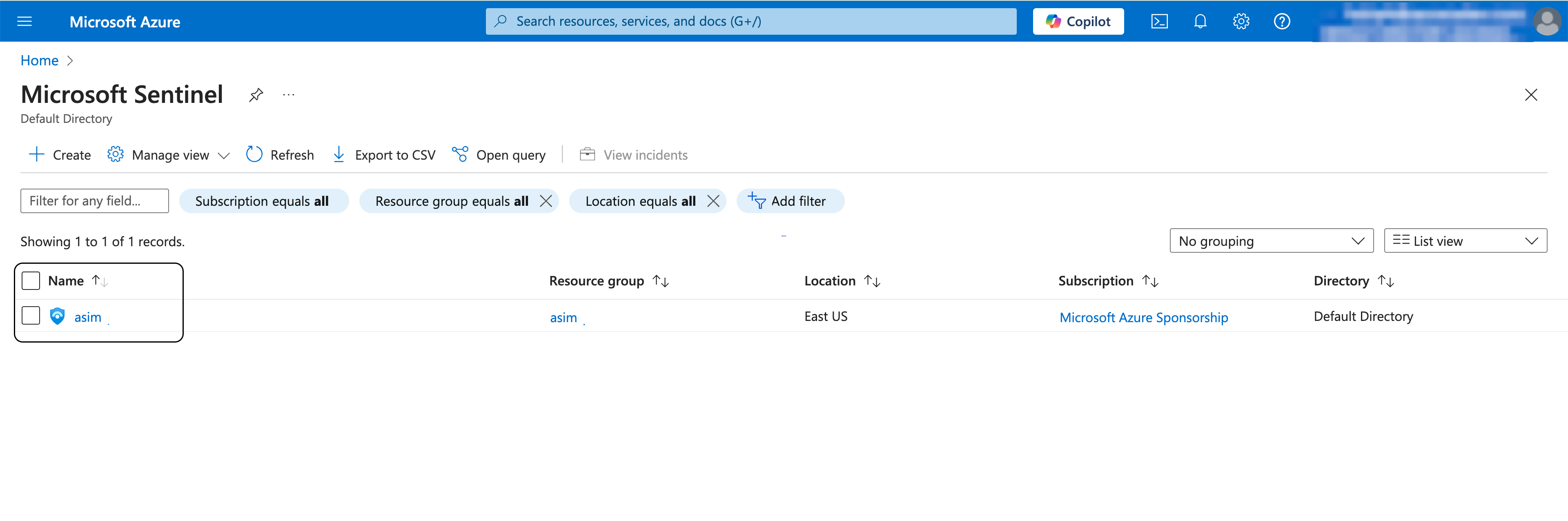
Go to the Microsoft Sentinel workspaces list and click on your Sentinel instance.
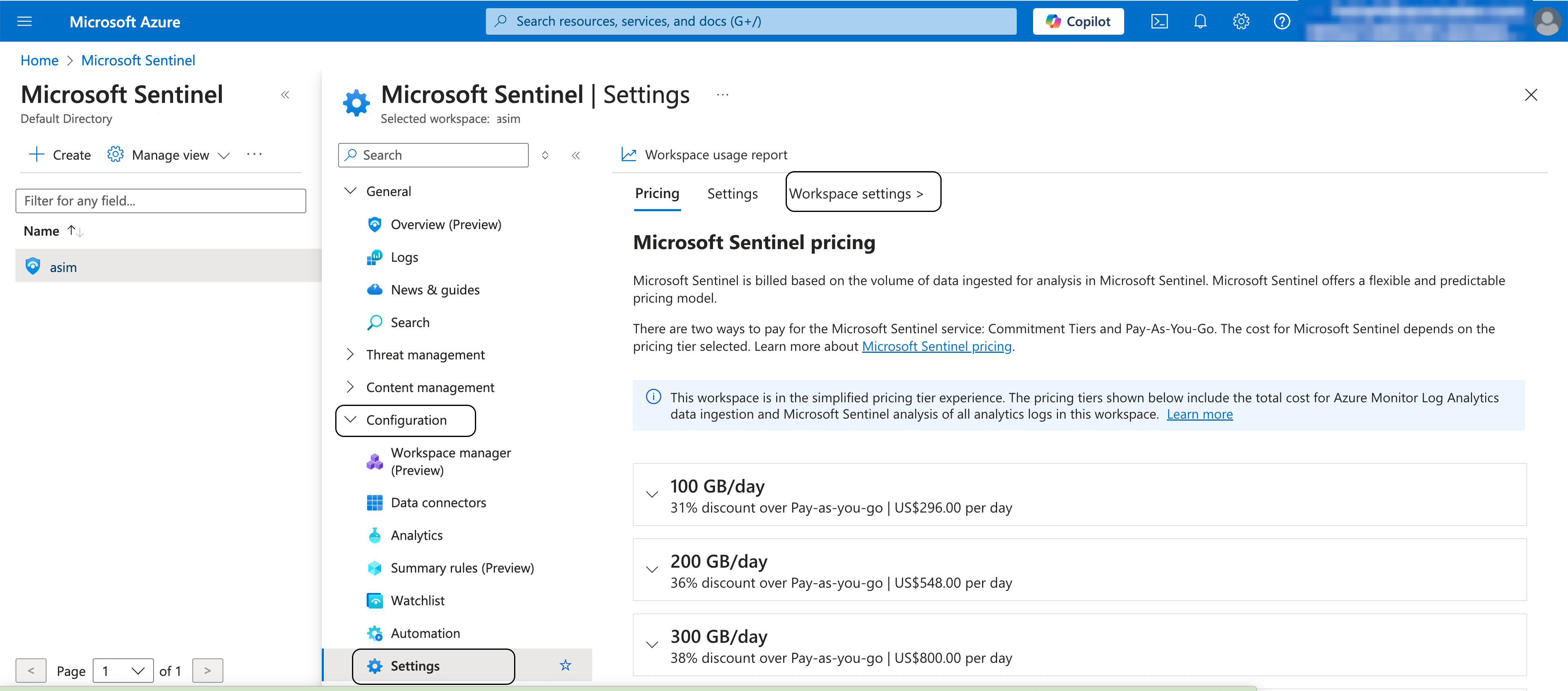
Expand Configuration in the left navigation and click Settings, then click Workspace settings.
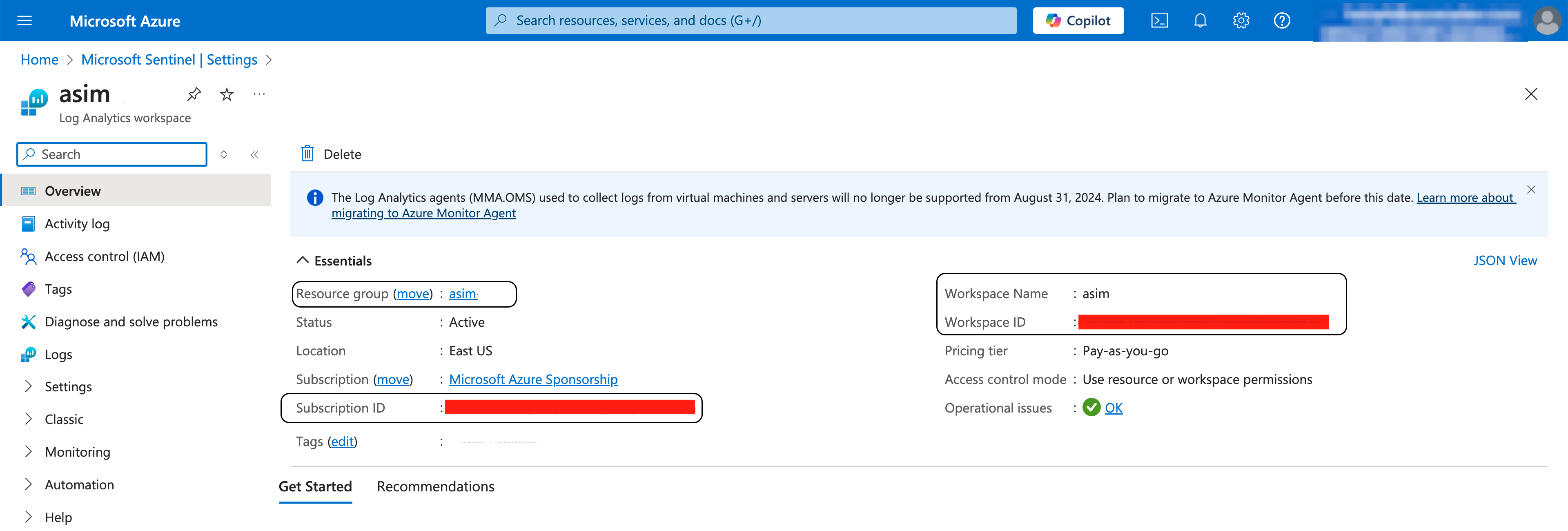
From the Essentials section, copy the following values:
- Resource Group Name
- Subscription ID
- Workspace ID
- Workspace Name
Add the Log Analytics API Permission
This step adds the one additional API permission required for Sentinel to the existing ASCERA app registration created during the Microsoft Entra ID connector setup. Do not create a new app registration.
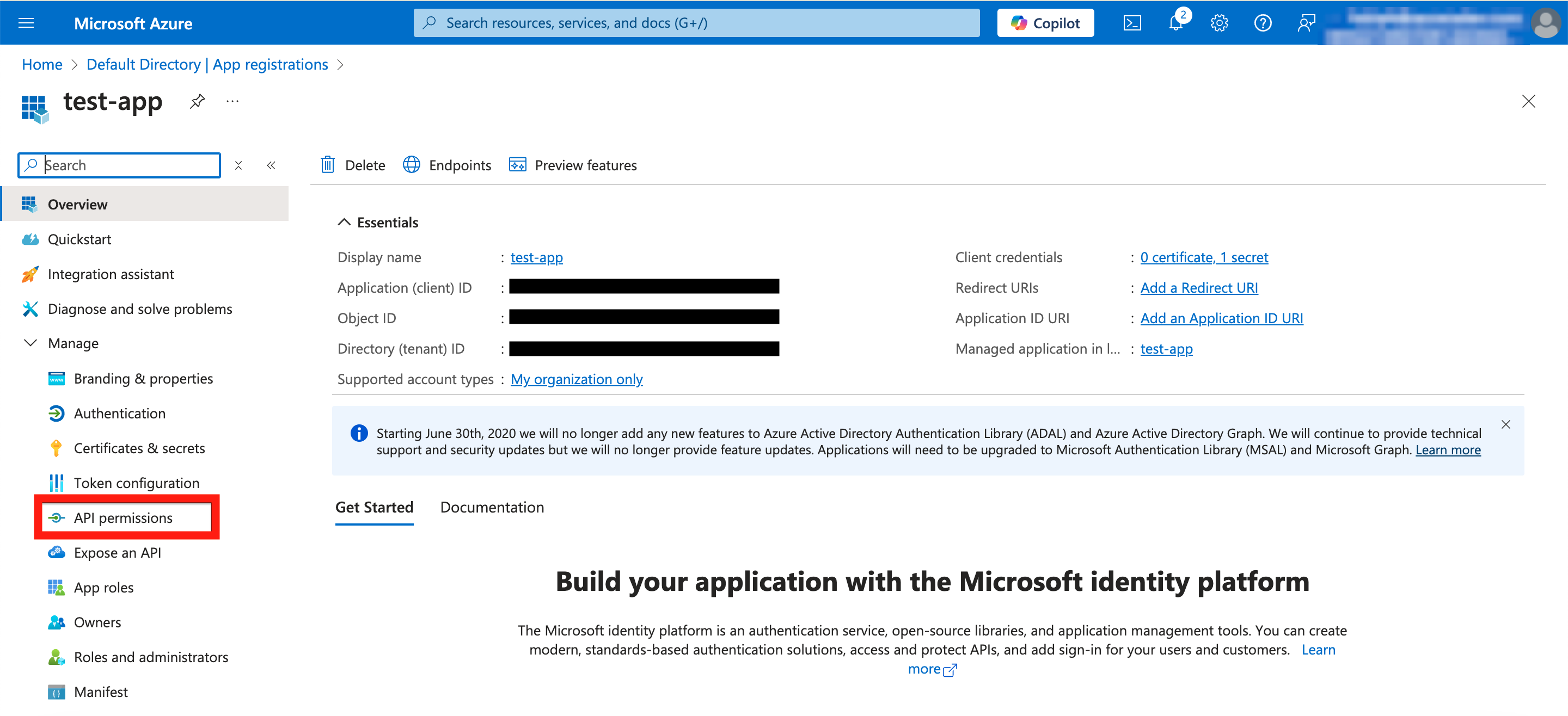
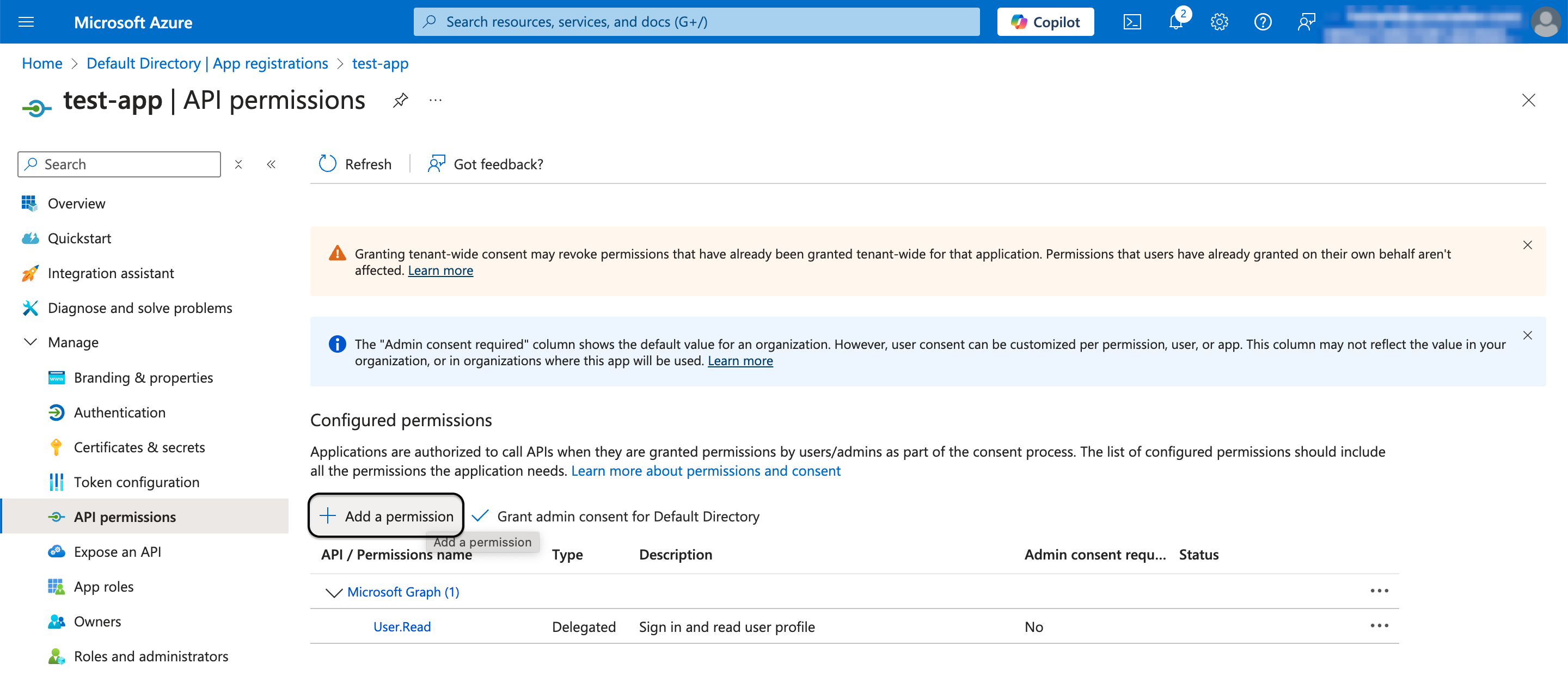
In the Azure Portal, navigate back to your ASCERA app registration that you created for Microsoft Entra ID. Go to Manage > API permissions. Click Add a permission.
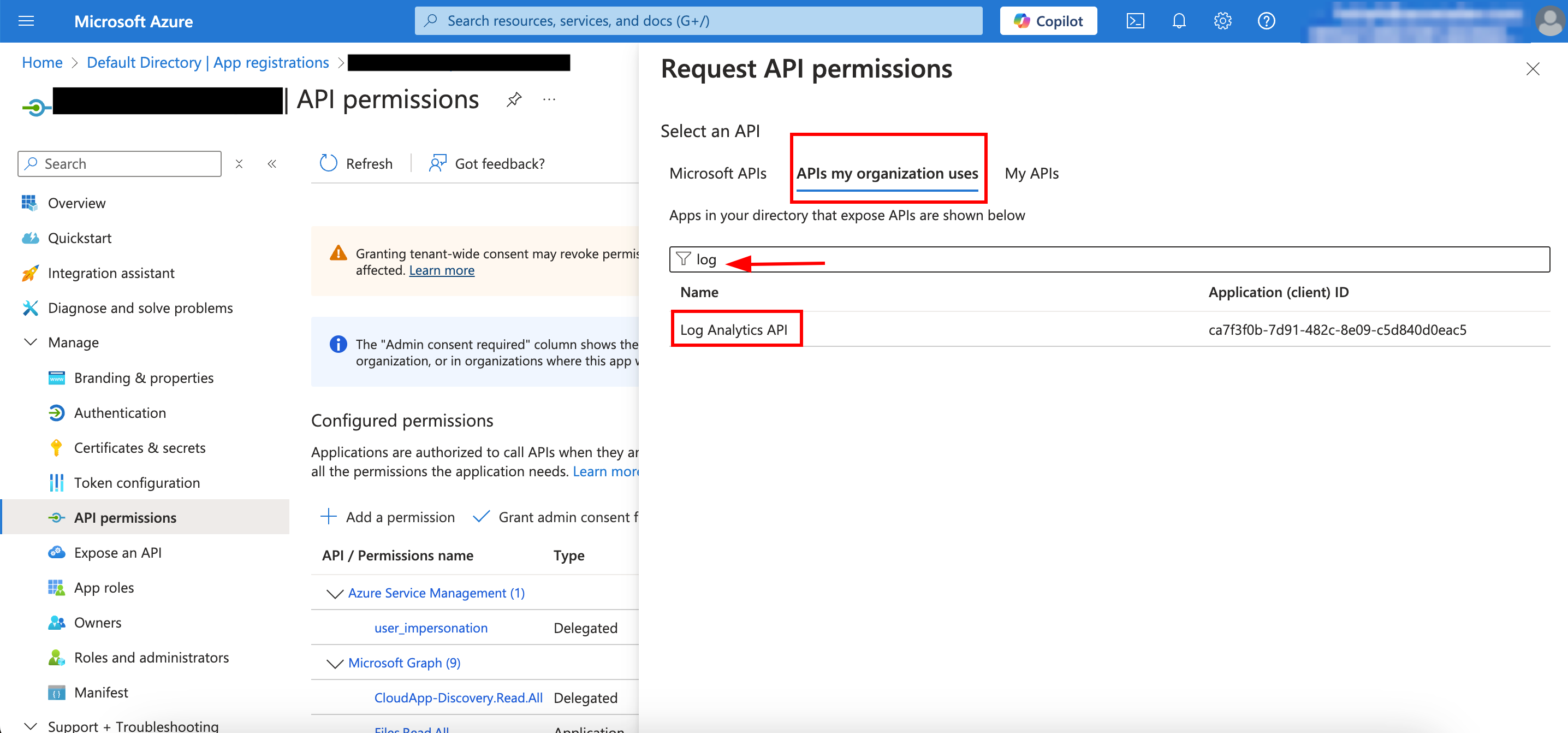
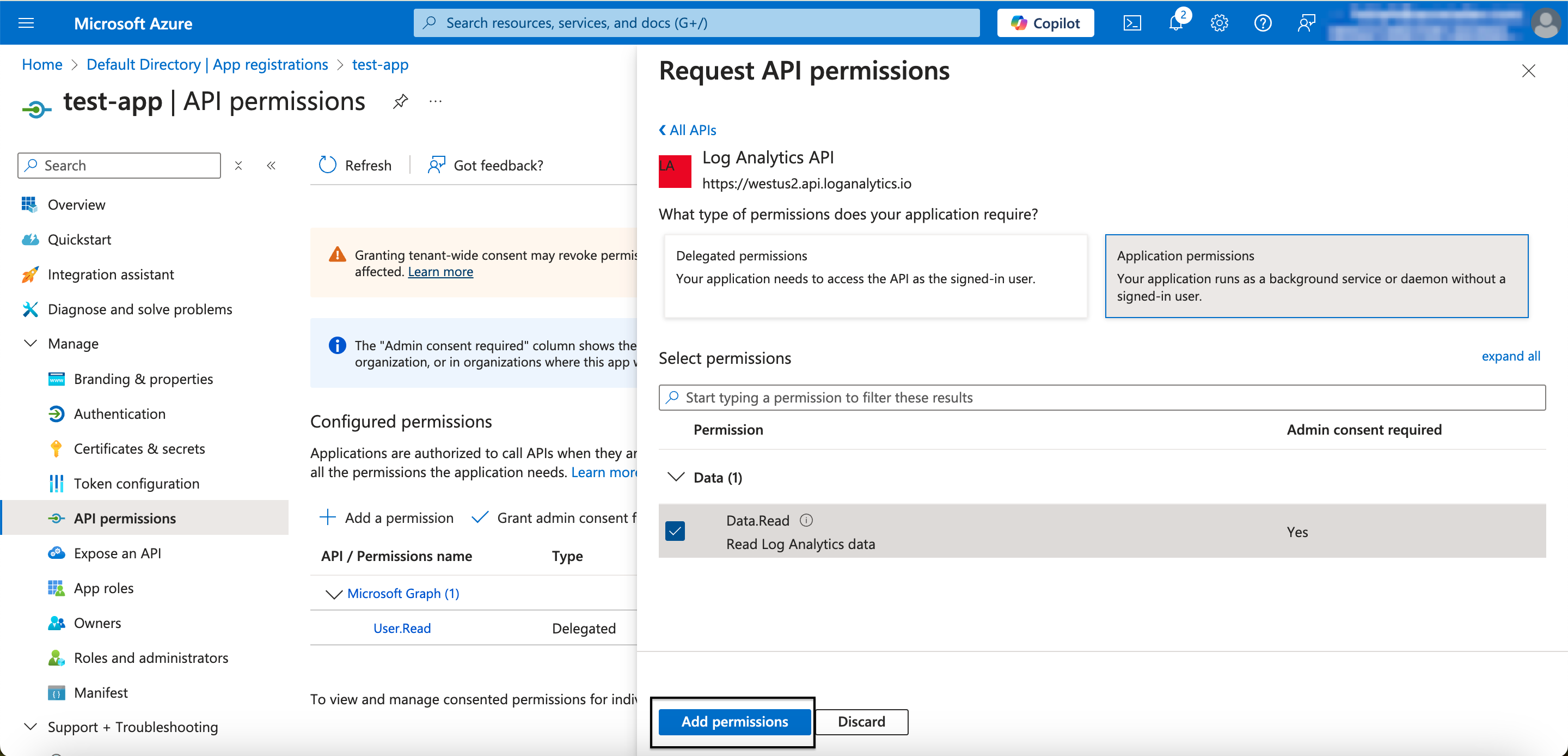
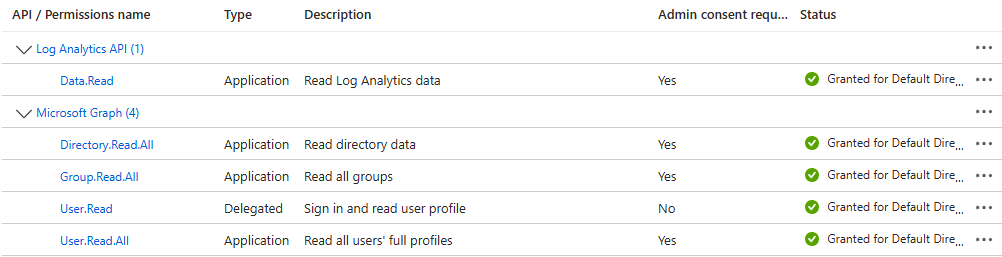
Click APIs my organization uses, search for Log Analytics API, select Application permissions, enable Data.Read, and click Add permissions.
Click Grant admin consent for Default Directory.
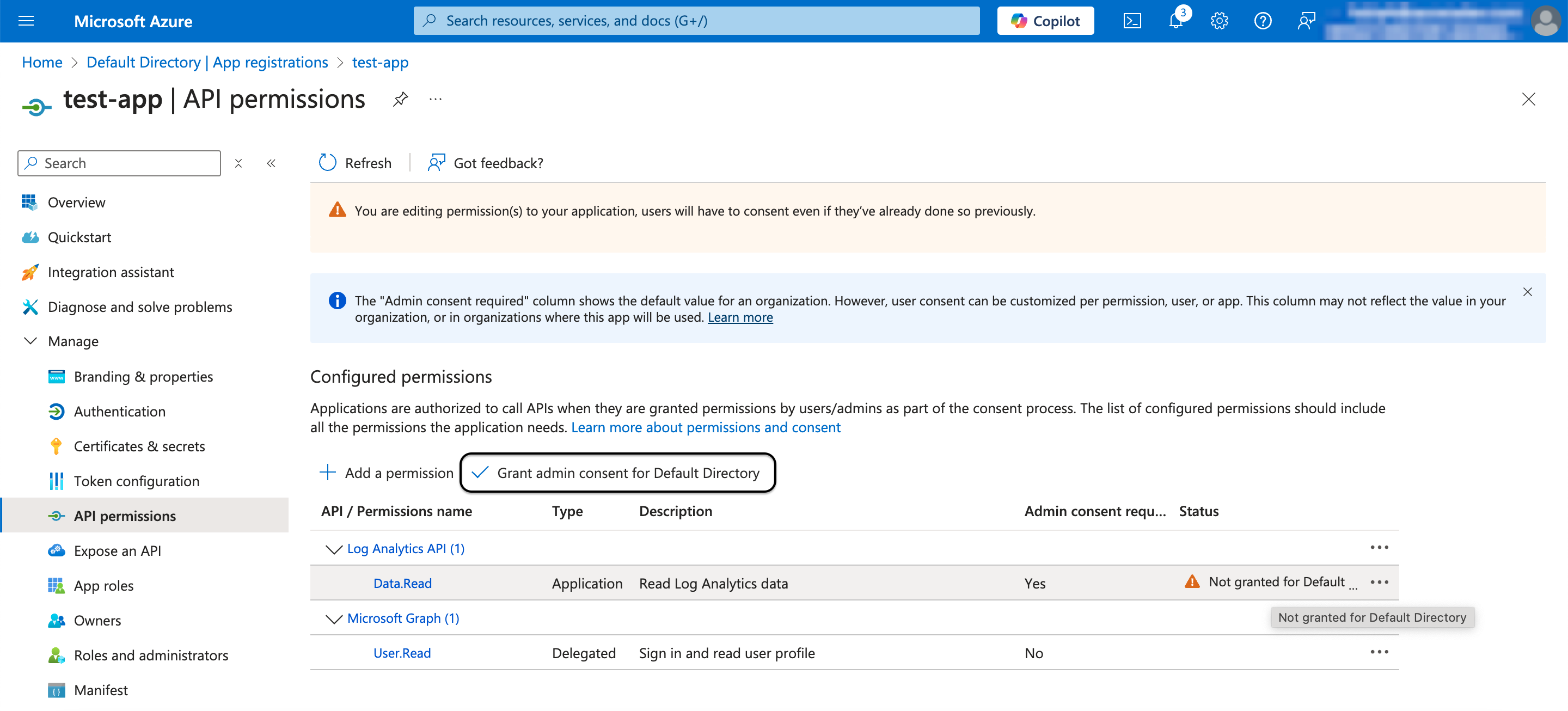
The updated permissions list should now include the Log Analytics permission alongside the Microsoft Graph permissions added during Entra ID connector setup:
Assign Roles
Navigate to your Subscription in the Azure Portal and select Access Control (IAM). Click Add role assignment and assign the following two roles to the app registration:
- Log Analytics Contributor: required to run KQL queries for compliance checks
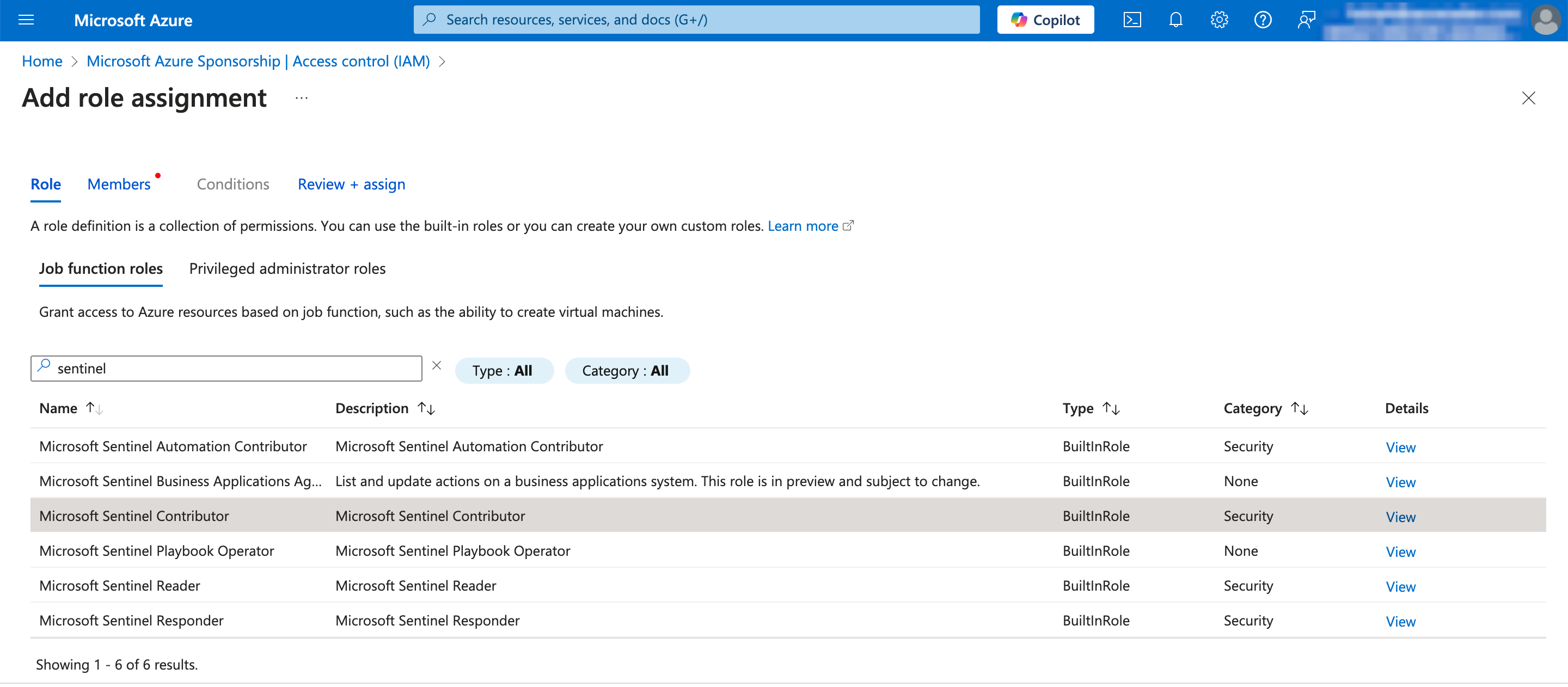
- Microsoft Sentinel Contributor: required to manage ASCERA watchlists used in KQL queries
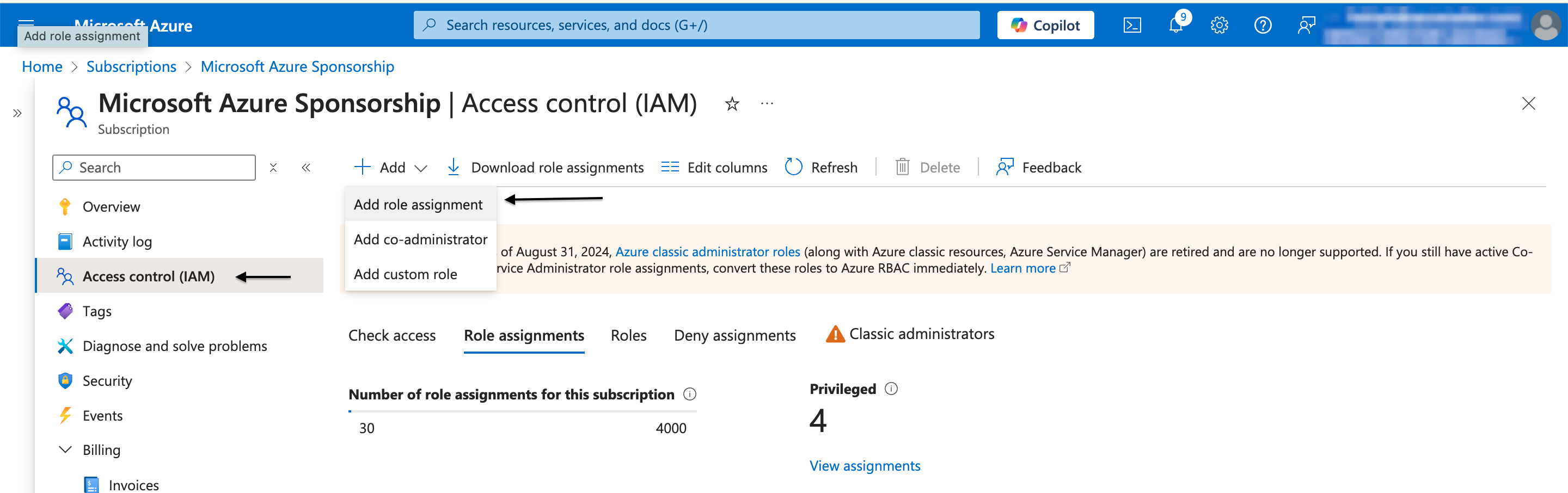
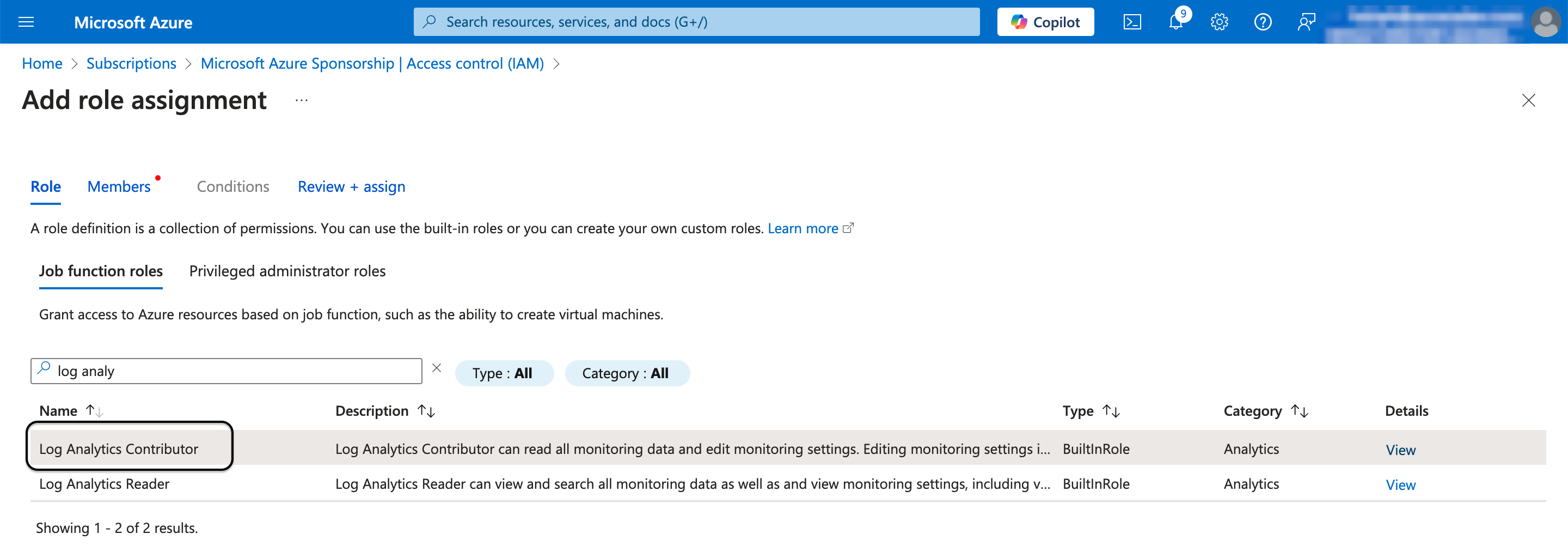
Search for log analytics and select Log Analytics Contributor. Click Next.
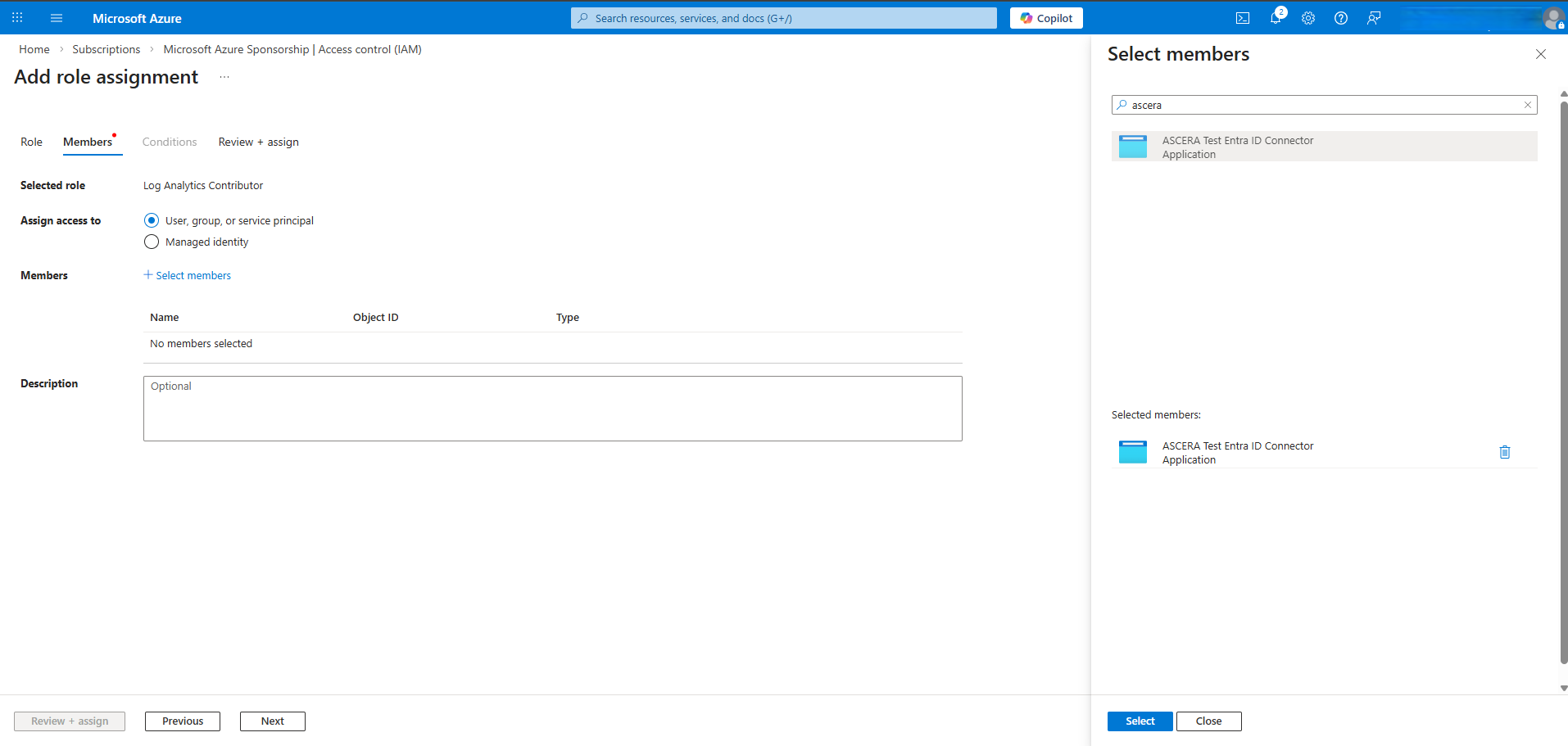
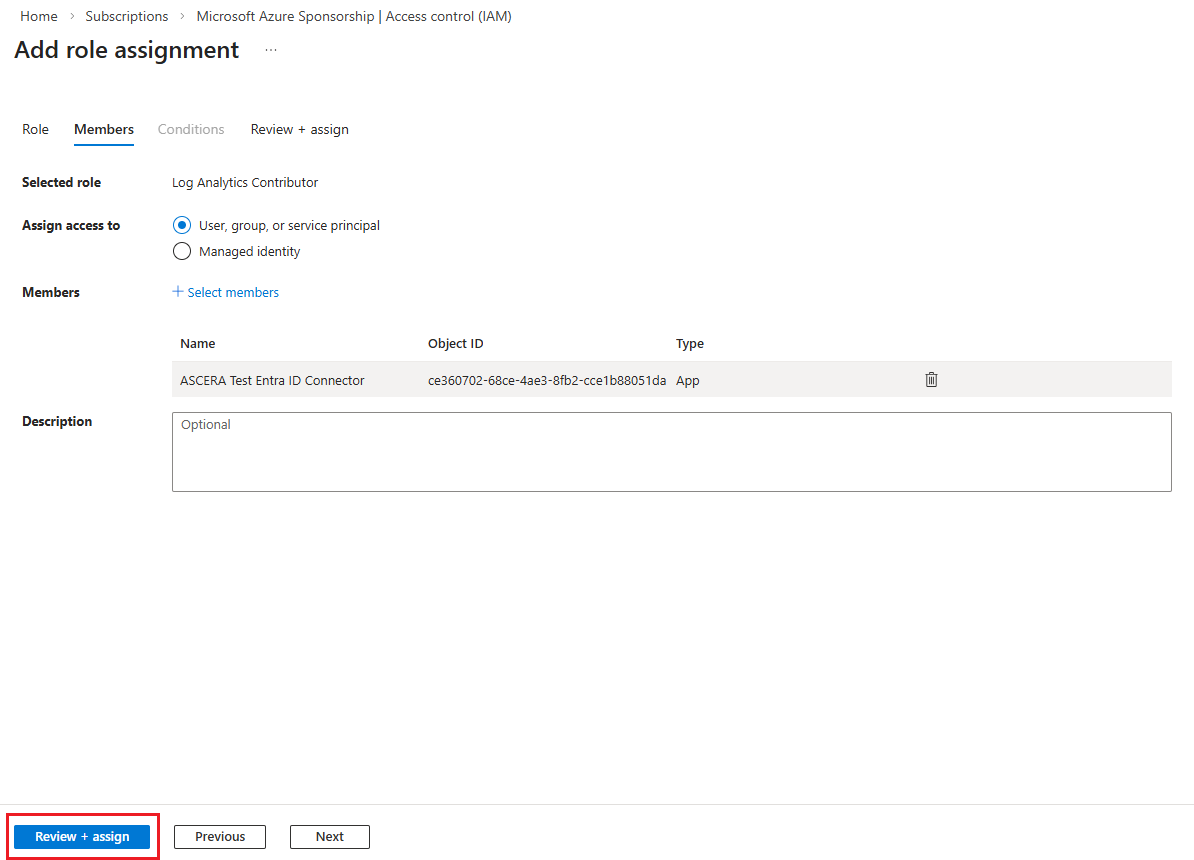
Click Select members and search for the app registration you created. Click Select after clicking on the correct app registration in the search results.
Click Review + assign.
Click Review + assign again.
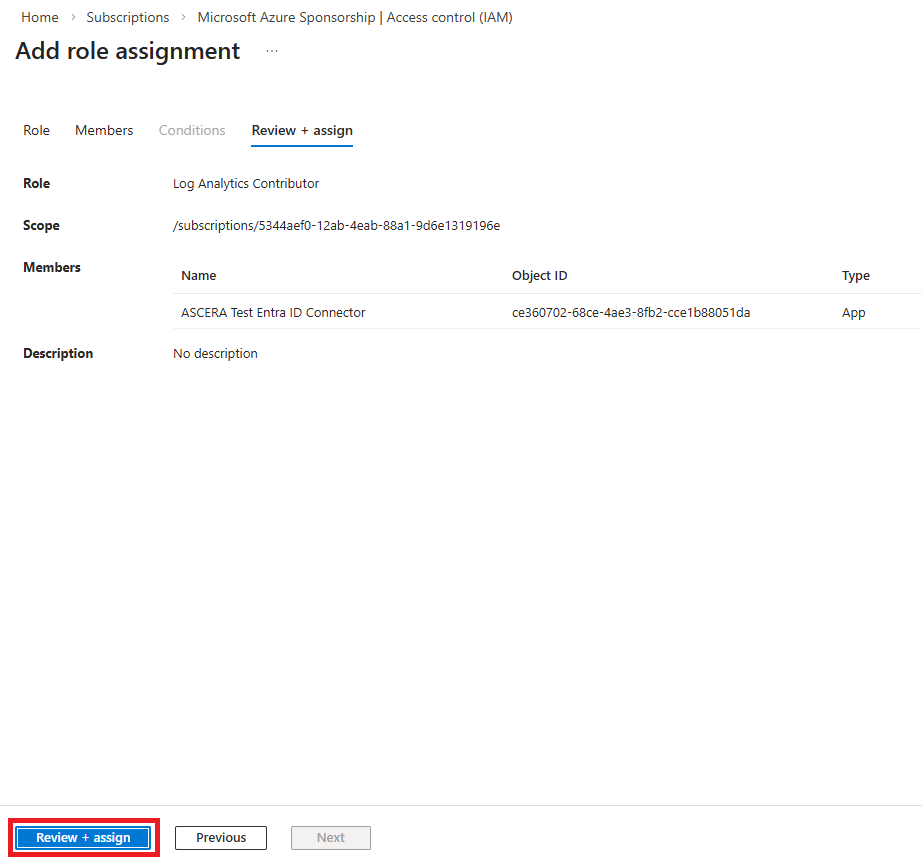
Confirm the success notification before proceeding.

Repeat the same steps for the Microsoft Sentinel Contributor role.
Validate Permissions
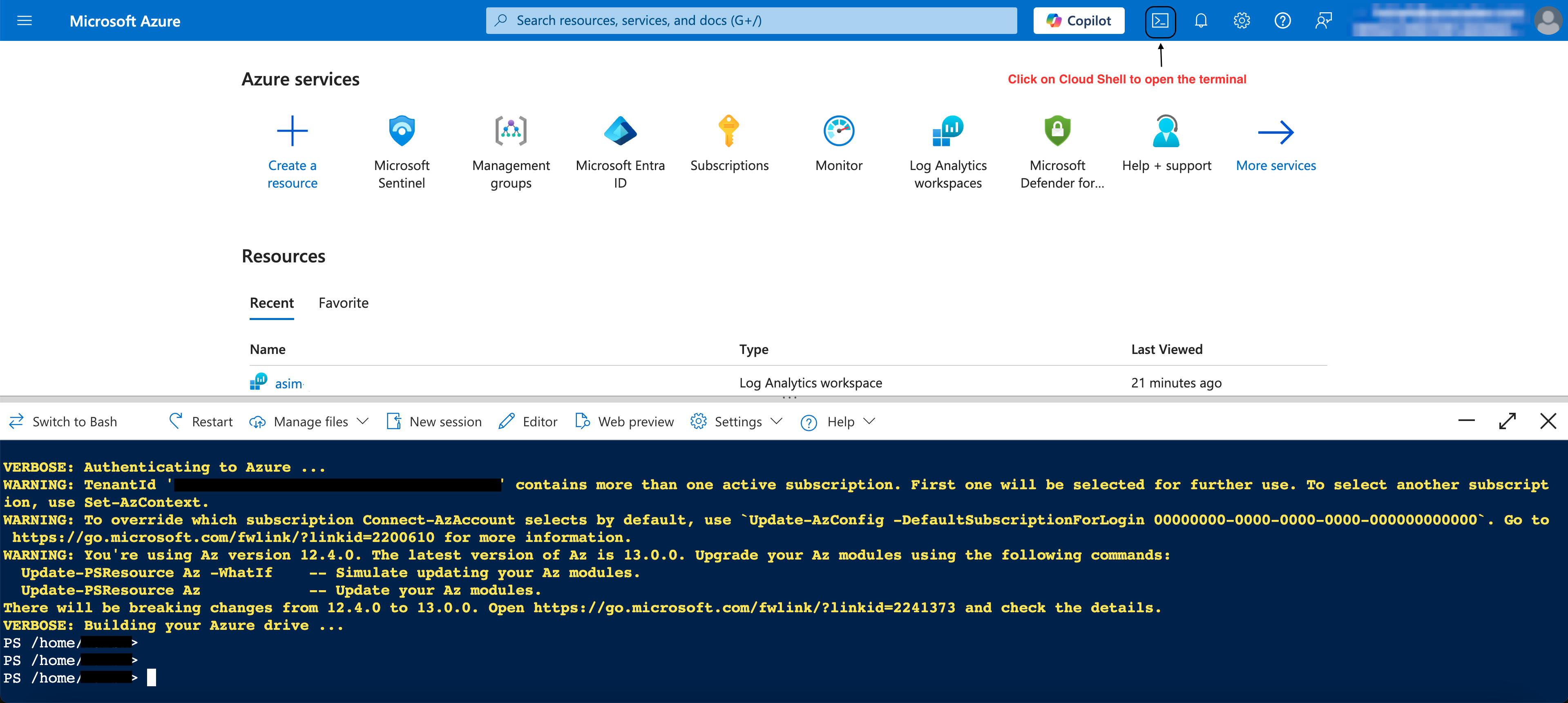
Before configuring ASCERA, confirm the app registration has the correct access by running a test query against the Log Analytics API using Azure Cloud Shell. Use whichever script below you are more comfortable with. Both do the same thing.
Option A: Bash
Switch Cloud Shell to Bash using the dropdown in the toolbar. Open the editor (you may have to switch to Classic mode) and paste the script below, substituting your values, and save with Ctrl+S. Close the editor, make the script executable, then run it:
# Set your values here
TENANT_ID="<your-tenant-id>"
CLIENT_ID="<your-client-id>"
CLIENT_SECRET="<your-client-secret>"
WORKSPACE_ID="<your-log-analytics-workspace-id>"

# Generate an access token
TOKEN=$(curl -s \
  --request POST \
  --url "https://login.microsoftonline.com/${TENANT_ID}/oauth2/token" \
  --header "Content-Type: application/x-www-form-urlencoded" \
  --data-urlencode "grant_type=client_credentials" \
  --data-urlencode "client_id=${CLIENT_ID}" \
  --data-urlencode "client_secret=${CLIENT_SECRET}" \
  --data-urlencode "resource=https://api.loganalytics.io" \
  | python3 -c "import sys,json; print(json.load(sys.stdin)['access_token'])")

# Run a test KQL query
curl --request POST \
  --url "https://api.loganalytics.io/v1/workspaces/${WORKSPACE_ID}/query" \
  --header "Content-Type: application/json" \
  --header "Authorization: Bearer ${TOKEN}" \
  --data '{"query": "print hello = \"Hello world!\""}'
You will need to make the script executable before running it:
chmod +x validate.sh
bash validate.sh
Expected output (Bash):
The Bash output will appear as a single line. This is normal. The JSON is not pretty-printed.
{"tables":[{"name":"PrimaryResult","columns":[{"name":"hello","type":"string"}],"rows":[["Hello world!"]]}]}
Option B: PowerShell
Switch Cloud Shell to PowerShell using the dropdown in the toolbar. Open the editor with code validate.ps1, paste the script below substituting your values, and save with Ctrl+S. Close the editor, then run it:
# Set your values here
$TenantId     = "<your-tenant-id>"
$ClientId     = "<your-client-id>"
$ClientSecret = "<your-client-secret>"
$WorkspaceId  = "<your-log-analytics-workspace-id>"

# Generate an access token
$tokenResponse = Invoke-RestMethod `
  -Method POST `
  -Uri "https://login.microsoftonline.com/$TenantId/oauth2/token" `
  -ContentType "application/x-www-form-urlencoded" `
  -Body @{
    grant_type    = "client_credentials"
    client_id     = $ClientId
    client_secret = $ClientSecret
    resource      = "https://api.loganalytics.io"
  }

# Run a test KQL query
$result = Invoke-RestMethod `
  -Method POST `
  -Uri "https://api.loganalytics.io/v1/workspaces/$WorkspaceId/query" `
  -Headers @{ Authorization = "Bearer $($tokenResponse.access_token)" } `
  -ContentType "application/json" `
  -Body '{"query": "print hello = \"Hello world!\""}'

$result | ConvertTo-Json -Depth 10
Running the script will output the JSON result of the test KQL query.
./validate.ps1
Expected output (PowerShell):
{
    "tables":  [
        {
            "name":  "PrimaryResult",
            "columns":  [
                {
                    "name":  "hello",
                    "type":  "string"
                }
            ],
            "rows":  [
                [
                    "Hello world!"
                ]
            ]
        }
    ]
}
Configure the Connector in ASCERA
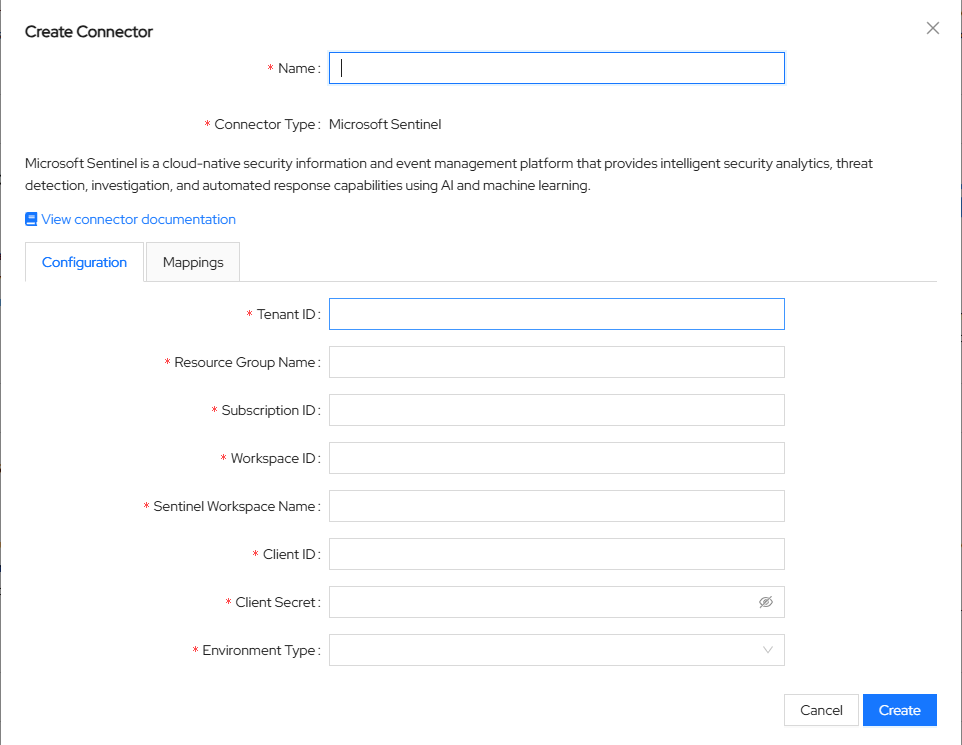
In ASCERA, navigate to Connectors, click Create in the upper-right corner and then select Microsoft Sentinel. Enter the following values:
- Name: A unique name to identify the connector instance
- Tenant ID (from the Entra ID connector setup)
- Client ID (from the Entra ID connector setup)
- Client Secret (from the Entra ID connector setup)
- Subscription ID (from the Sentinel connector setup above)
- Resource Group Name (from the Sentinel connector setup above)
- Workspace ID (from the Sentinel connector setup above)
- Workspace Name (from the Sentinel connector setup above)
Save the configuration to proceed.
Test the Connection
To verify the connector is properly configured in ASCERA, navigate to Automations and search for ASC.AU-0009. Click the automation ID to view the details page.
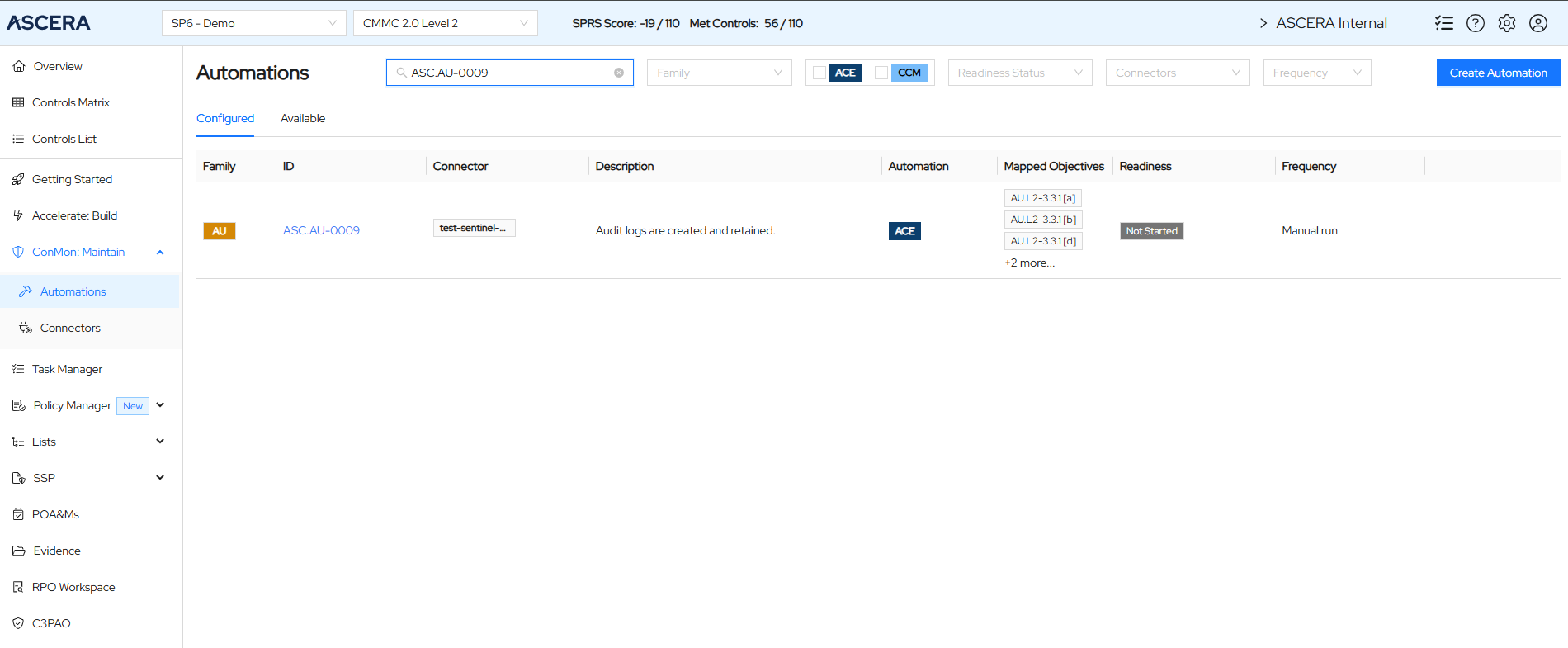
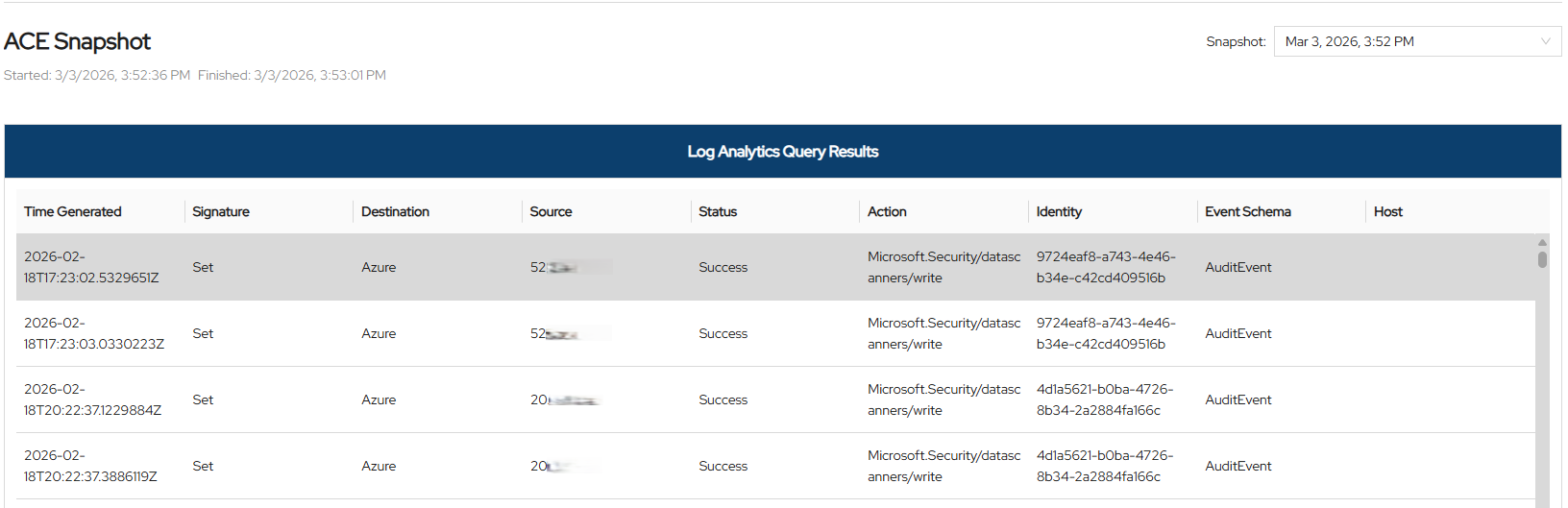
Click the Run Automation button in the upper right corner. This automation runs a KQL query against the Sentinel workspace using the connector credentials. Wait for a success notification before checking the output.

Scroll down to the ACE Snapshot section to view the results of automation.
Troubleshooting
- Authentication failure / 401 Unauthorized: Verify the Tenant ID, Client ID, and Client Secret are correct and that the client secret has not expired.
- 403 Forbidden on Log Analytics API: Confirm the
Log Analytics API > Data.Readapplication permission has been added and admin consent has been granted. - No data returned from KQL queries: Confirm the
Log Analytics Contributorrole has been assigned to the app registration on the correct subscription. - Watchlist errors: Confirm the
Microsoft Sentinel Contributorrole has been assigned to the app registration. - Wrong tenant data: Ensure you registered the application and gathered credentials from the directory where your Sentinel workspace is deployed, not an alternate tenant.