KnowBe4 Connector Configuration Guide for ASCERA
The KnowBe4 connector allows ASCERA to pull security awareness training and phishing simulation data from your KnowBe4 KSAT console via the Reporting API. Setup requires enabling the Reporting API and generating an API token in KnowBe4.
Prerequisites
- Admin role in your KnowBe4 KSAT console
The following value is required when configuring the connector in ASCERA:
- API Token: Generated from the KnowBe4 Reporting API settings
KnowBe4 Setup
Before you begin: As you work through the steps below, record the API Token in a secure location. It will only be shown once and is required to complete the connector configuration in ASCERA.
Navigate to Account Settings
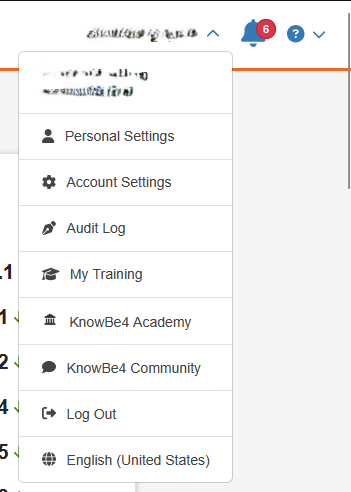
Log in to your KnowBe4 KSAT console as an admin. Click your profile name or email address in the top-right corner and select Account Settings.
Enable the Reporting API
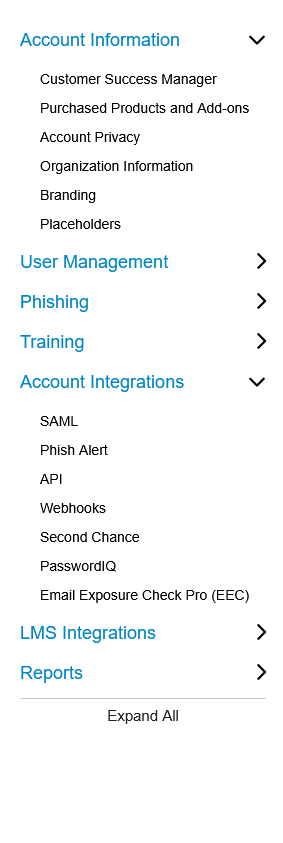
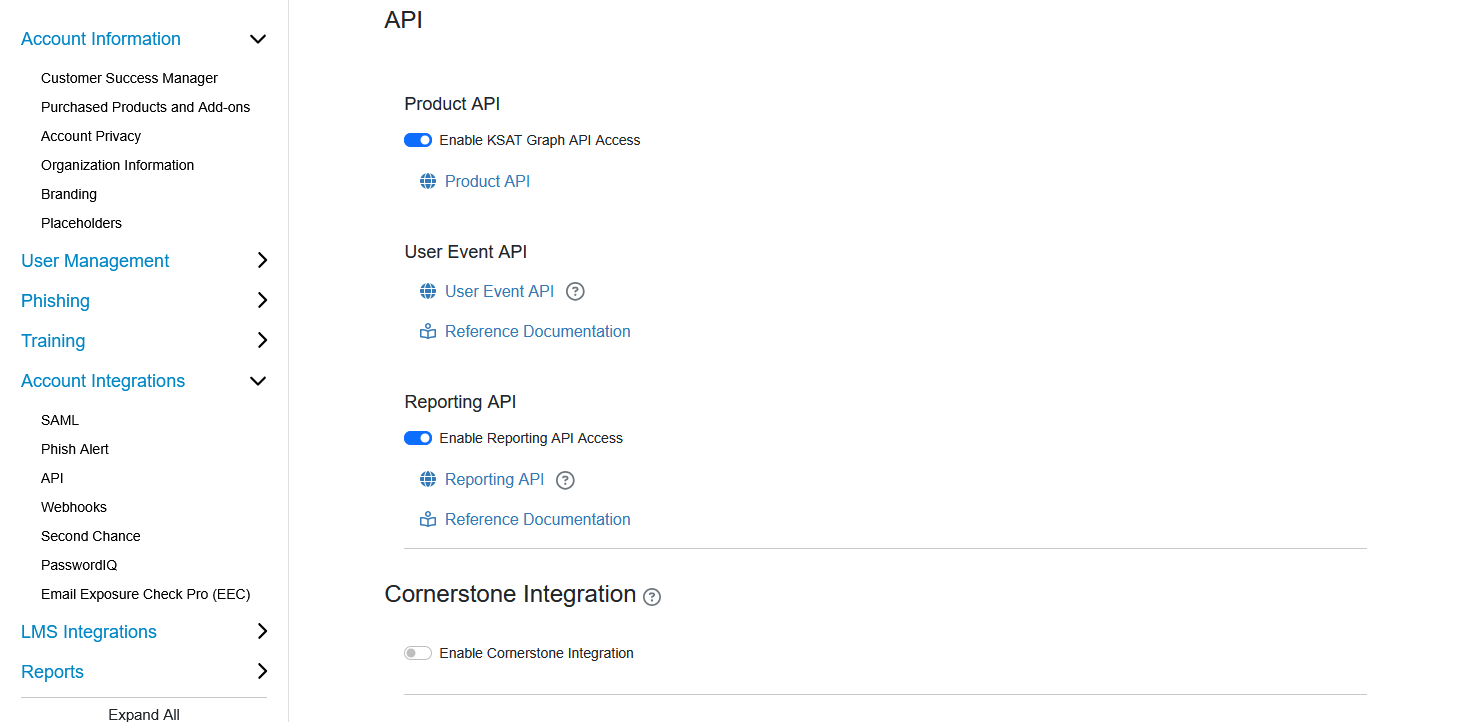
In the Account Settings left menu, expand Account Integrations and click API. On the API page, locate the Reporting API section and toggle on Enable Reporting API Access.
Create a Reporting API Token
Click the Reporting API link in the Reporting API section. This opens the KnowBe4 APIs page on the Reporting API tab. Click + Create New API Token.

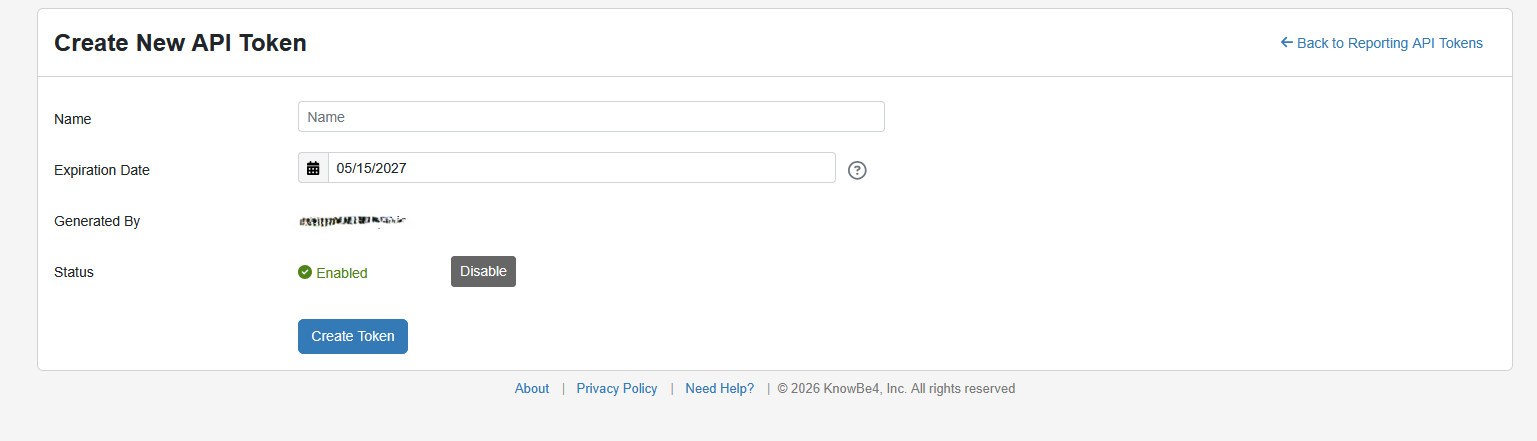
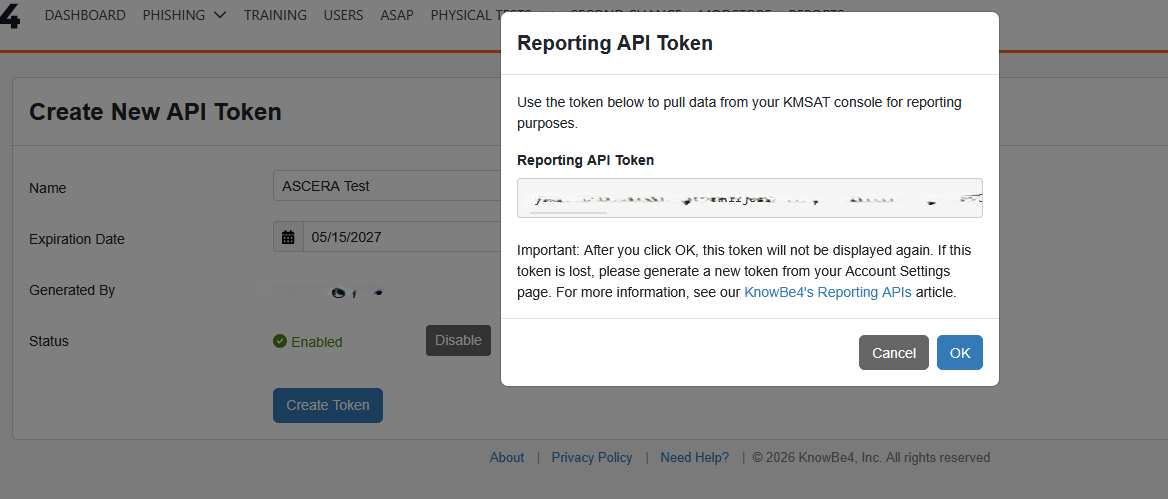
On the Create New API Token form, enter a Name (e.g., ASCERA Connector) and set an Expiration Date per your organization's policy. Click Create Token.
A modal will display the Reporting API Token. Copy the token value immediately and store it in a secure location.
The token is only shown once. If lost, you must generate a new token from the Account Settings page.
Configure the Connector in ASCERA
Unfold ConMon: Maintain and choose Connectors, then click Create in the upper right corner. Select KnowBe4 from the list of connector types.
Enter the values collected above into the connector configuration:
- Name:
KnowBe4 ASCERA Connector(or any name you prefer) - API Token: The Reporting API Token copied from KnowBe4
- Server: Select the region that matches your KnowBe4 account (e.g.,
US,EU,UK,CA,DE, orAU)
Save the configuration to proceed.
Test the Connection
After saving, ASCERA will begin synchronizing data from KnowBe4. To verify, unfold Lists on the left and choose Lookup Lists. Locate the Lookup List associated with this connector, click Synchronize, and confirm the sync starts and completes successfully.
Troubleshooting
- Invalid or expired token: Ensure the full token value was copied before closing the modal; generate a new token if necessary
- Reporting API not enabled: Verify the Enable Reporting API Access toggle is on in Account Settings > Account Integrations > API
- Wrong server region: Confirm the selected region in ASCERA matches the region your KnowBe4 account is hosted in